




What if the VPN you turn on for work protects your connection but still doesn’t protect your work account? A VPN for remote work security can add a layer of privacy when you’re working from home, a café, or a hotel, but it isn’t permission to bypass your employer’s security rules.
It’s reasonable to want more protection when you’re signing in over a network you don’t fully trust. It’s just as important to know which VPN you’re using: a personal VPN encrypts traffic between your device and the VPN server, while an employer’s remote-access tool controls how you reach company systems. They serve different purposes, and one doesn’t replace the other.
This guide explains what a VPN can help protect, what it can’t fix, and how to choose features that suit your work routine without expecting a VPN to solve every security problem. You’ll also learn how to avoid common snags, such as slower connections or apps that don’t work as expected, and how to build a connection routine that follows your employer’s policies. The goal is simple: protect your connection while keeping work access under the right controls.
Key Takeaways
- A VPN for remote work security can encrypt the connection between your device and a VPN server, but it won’t secure every account, device, or work system.
- Understand how traffic travels through the VPN tunnel to see what a VPN changes and what it doesn’t.
- Match VPN features to your work setup, weighing device support and multi-device use against possible performance trade-offs.
- Before connecting, review workplace rules and use only approved devices, apps, accounts, and access methods.
- A personal VPN can add connection privacy while employer-managed security controls remain in charge of work access.
VPN for Remote Work Security: Which Risks Does It Actually Reduce?
You’re answering a work message from a hotel lobby, joining a meeting from a café, or finishing a task on your home Wi-Fi. The network changes, but the scope of a VPN’s protection doesn’t: it can help shield traffic traveling between your device and a VPN server. It can’t secure every device, work app, or account. That’s the practical answer to what a VPN for remote work security can and can’t do.
A VPN creates an encrypted connection, often called a tunnel, between your device and a VPN server. Your internet traffic travels through that tunnel before continuing to its destination. The Virtual Private Network (VPN) overview explains the basic concept and common uses. For remote work, the key point is that encryption can make traffic harder for someone on the same local network to read.
What does a VPN protect when you work remotely?
On public Wi-Fi, a VPN adds a privacy layer between your device and the network you’ve joined. A café or hotel hotspot isn’t automatically compromised, but you may not control how it’s set up or know who else is using it. Encryption helps limit what a local-network observer can learn from your traffic as it travels to the VPN server.
That protection applies to the connection, not everything you do online. The network may still see that your device is connected to a VPN, and websites or work services still receive your requests. Secure websites use their own protections, while your account’s safety still depends on measures such as strong sign-in credentials and multifactor authentication.
What a VPN cannot do for work security
A VPN won’t remove malware, repair an unpatched device, or stop you from entering your password on a convincing phishing page. If a threat is already on your computer, encrypting its internet connection doesn’t make the computer trustworthy. Keep your device updated and follow your employer’s security practices rather than treating a VPN as a substitute.
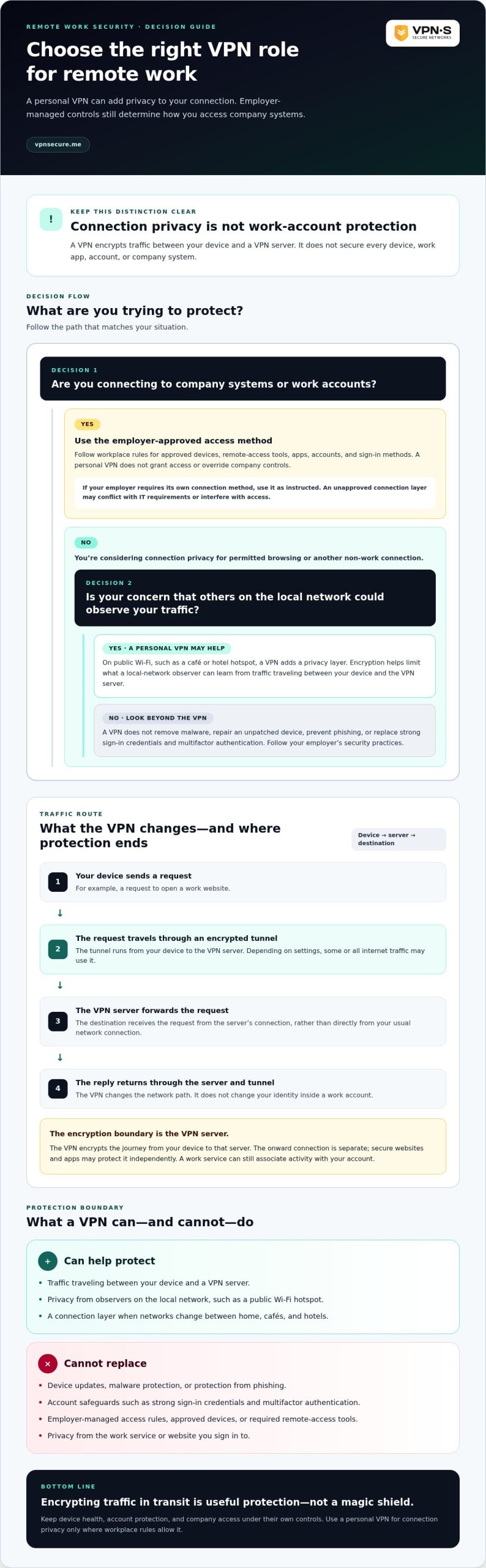
Your employer may also manage work accounts, devices, and access to company systems. A personal VPN doesn’t override those controls or grant permission to reach a work service. Follow workplace rules about approved devices, remote-access tools, and account use. If your employer requires its own connection method, use it as instructed.
Encryption protects traffic in transit; it doesn’t make an infected device or vulnerable account secure. Keep that distinction in mind. A VPN can reduce exposure on the network between you and the VPN server, while device health, account protection, and company access remain separate parts of remote-work security. It’s useful protection, not a magic shield.
How a Remote-Work VPN Connection Works From Device to Server
A VPN changes the route your internet traffic takes. When you connect, your device establishes an encrypted tunnel to a VPN server. Depending on the VPN’s settings, some or all of your internet traffic travels through that tunnel. The server then forwards requests to their destinations, such as a website or an online work service.
Picture opening a work website. Your device sends a request through the tunnel to the VPN server. The server connects onward, and the website receives the request from that server’s connection rather than directly from your usual network connection. Replies travel back through the server and tunnel to your device. The VPN changes the network path, but it doesn’t change your identity inside the work account.
Encryption covers the journey from your device to the VPN server; it doesn’t erase what happens after that or control the security of the systems you use. The connection from the VPN server to a website is a separate leg. Secure websites and apps may protect that leg independently, but the VPN itself doesn’t make every onward connection private or safe.
Personal VPN versus employer-managed remote access
A personal VPN is a connection-privacy tool for an individual device. It routes traffic through a VPN server, which can help shield it from observers on the local network. An employer-managed remote-access VPN serves a different purpose: the company controls the route into approved work systems and can set access rules for its resources. These tools aren’t interchangeable.
If your organization specifies a remote-access app, company VPN, or other approved sign-in method, use it as instructed. Don’t assume that connecting a personal VPN gives you permission or access to company systems. In some workplaces, adding an unapproved connection layer may conflict with IT requirements or interfere with access.
Why encryption does not equal anonymity
A VPN changes how traffic travels, not what you do after signing in. A work service can still associate activity with your account, and websites may retain information through their own systems. Your employer may also have visibility through company-managed devices, accounts, or applications. Encryption between your device and a VPN server doesn’t conceal activity from the service you’re using.
It’s also worth distinguishing a provider’s logging practices from the privacy a tunnel provides. A no-log VPN audit guide can help explain why a provider’s claims and the evidence behind them matter. Neither a no-log policy nor an encrypted connection makes an active work account anonymous.
For personal browsing or other permitted use, a personal VPN can add a privacy layer between your device and the network it’s using. Explore VPN Secure’s encrypted connection for that purpose, while keeping employer-approved tools in charge of work access.
How to Evaluate VPN Features for Remote Work Security
The right choice depends on your work routine, not on the length of a feature list. For VPN for remote work security, first check whether the connection works with your devices and essential apps. Then weigh the privacy benefit against any effect on speed or stability. A VPN can affect performance, so test the tools you rely on before making it part of your daily setup.
| Work scenario | Feature to weigh | Trade-off or check |
|---|---|---|
| Switching between work devices | Support for your devices and multi-device use | Check that the apps you need are compatible and work as expected. |
| Using networks away from home | An encrypted VPN connection | Encryption adds a privacy layer, but it may affect connection speed. |
| Joining video calls or transferring files | Connection performance and stability | Test calls, file access, and other critical tasks while connected. |
| Accessing an approved system with IP restrictions | A dedicated IP | Your employer must authorize and configure the allowlisting workflow. |
Don’t judge performance by browsing alone. Try the VPN with a video meeting, a work file, and any applications you use throughout the day. Compare how they behave with the VPN connected and disconnected, while following your employer’s rules. If a work app stops responding, don’t bypass company controls; use your organization’s approved support or access process.
When does a dedicated IP help with remote access?
A dedicated IP is a static address assigned for an individual subscriber’s use. It may suit an employer-authorized workflow where an approved system allows connections only from specific IP addresses. The address alone won’t grant access. Your employer must approve and configure the allowlist, and its normal identity checks and access rules still apply. Learn more about VPN with static IP for remote access.
Which privacy and reliability details deserve attention?
Read the provider’s privacy policy to understand its logging claims, and look for credible evidence behind them instead of relying on a headline promise. Then check device coverage for the equipment you use and consider whether the connection stays stable during your typical work tasks. No single feature addresses every concern, so assess the overall fit.
Keep your workplace’s requirements at the center of the decision. A personal VPN is a connection-privacy layer, not a replacement for company-managed access or security controls. If you’re considering one for personal use on supported devices, explore VPN Secure’s encrypted VPN access and use it only in a way your employer permits.
How to Set Up a VPN for Remote Work Without Breaking Workplace Rules
A secure routine starts before you connect. Your employer’s policies determine which devices, apps, accounts, and remote-access methods are acceptable. A personal VPN may add connection privacy, but it shouldn’t replace a company-required tool or change how you’re expected to access work. Use this checklist to protect your connection without creating an access or policy problem.
A practical pre-work connection checklist
Check the rules and test your setup before relying on it during a deadline, presentation, or important call. If an approved work service behaves differently than expected, don’t work around its controls. Use your organization’s support process.
- Review the policy. Read your employer’s written security and location requirements. Identify approved devices, apps, accounts, remote-access tools, and any limits on VPN use.
- Use the intended device and app. Install the VPN app only on a device you’re permitted to use, and use the approved app for work access. Don’t substitute a personal connection for an employer-managed tool if your organization requires one.
- Check the connection status. Open the VPN app and confirm its status before beginning work. If it isn’t connected as expected, pause and follow the app’s normal troubleshooting steps rather than assuming your traffic is protected.
- Test essential work services. Sign in to the work tools you’ll need, such as email, file access, or video meetings. Check that they function normally and that calls or uploads are stable.
- Use the approved support route. If a work service blocks access or behaves unusually, contact your organization through its established support process. Don’t disable required controls or try to disguise your connection.
Safer habits beyond the VPN connection
A VPN is one part of a responsible setup, not the whole routine. Keep your operating system, browser, and work applications updated so known weaknesses don’t linger. Use unique passwords for your accounts and enable multifactor authentication where it’s available. These steps help protect access even when the VPN isn’t involved.
Be clear about the purpose of each connection. Follow your employer’s location rules, and don’t use a VPN to misrepresent where you’re working or evade workplace controls. If the organization requires a specific access method, use it as directed. That keeps your routine aligned with company policy and avoids turning a privacy tool into an access problem.
Once you’ve confirmed your setup fits your workplace rules, explore VPN Secure’s encrypted VPN access as a personal connection-privacy option for your permitted work routine.
Where VPN Secure Fits in a Remote-Work Security Plan
A personal VPN can add privacy to the connection your device uses, especially when you’re away from a network you trust. That’s its role in a remote-work security plan, not a replacement for the systems your employer uses to manage accounts, devices, and access to company resources. VPN Secure provides encrypted VPN access across major devices, with multi-device support, unlimited bandwidth, and servers in over 40 countries. Its no-log positioning is another detail to consider when assessing a personal VPN.
A personal VPN’s place in the security stack
Think of security as layers, not one magic switch. A VPN can encrypt the connection between your device and a VPN server, while device updates help address software vulnerabilities and strong passwords with multifactor authentication help protect account access. Employer-managed controls still govern approved work systems. VPN Secure is a personal connection-privacy option, not company administration or endpoint protection, so it doesn’t replace those safeguards. For dedicated endpoint resilience and instant workstation data protection, visit Horizon DataSys.
This distinction matters if your employer requires a specific remote-access app or manages your work device. Keep using the approved access method, and follow workplace instructions even if you also use a personal VPN for permitted activity. A personal connection can complement employer security, but it doesn’t grant authorization to reach company systems or change the rules for using them. On the enterprise side, validating the resilience of corporate gateways and access controls often involves proactive penetration testing from AppSecure Security.
Choose a plan around your actual work routine
Start with the devices you intend to use for personal VPN connections. Check that the VPN supports them, then consider multi-device support if your routine includes more than one device. VPN Secure offers monthly and annual VPN subscriptions, along with multi-device use. Its unlimited bandwidth may suit regular use, while servers in over 40 countries provide location options for connecting. Choose features that fit your routine, not ones that encourage you to bypass workplace requirements.
A dedicated IP add-on may be relevant if your employer has an approved workflow that allows access from a specific IP address. The employer must authorize and configure that allowlisting process. A dedicated IP doesn’t guarantee access to a work system, override sign-in checks, or replace company-managed remote access. If your employer doesn’t require or approve this workflow, it may not be useful for your work setup.
Keep expectations grounded. VPN Secure’s no-log positioning relates to the provider’s handling of VPN activity; it doesn’t make work accounts anonymous or determine what employer-managed devices and services record. Pair a personal VPN with updated devices, protected accounts, and your organization’s access rules. That’s a clear, responsible role for a VPN for remote work security.
If a personal encrypted connection fits your permitted routine, explore VPN Secure subscriptions and choose based on the devices and connection needs you actually have.
Make Your Next Connection a Deliberate Choice
Before your next remote workday, decide where a personal privacy layer fits your routine and make sure its use aligns with your employer’s policies. Start with a permitted device and a task that’s easy to test. Notice whether the connection works smoothly, then adjust your routine based on what you learn. Security should support your work, not create friction or confusion about who controls access.
VPN Secure, founded in 2012 and based in the Bahamas, offers encrypted VPN access with no-log positioning, support for major devices, and servers in over 40 countries. These are options for personal connection privacy, not a substitute for employer-managed security. The next step is to decide whether that added layer suits your needs and permitted use.
Explore VPN Secure and protect your connection with an option that fits your routine. Explore VPN Secure and protect your connection, then work with greater confidence wherever your approved setup takes you.
Frequently Asked Questions
Can my employer see what I do online if I use a VPN?
Possibly, especially if you’re using a company-managed device, work account, or employer network tools. A personal VPN doesn’t hide activity recorded by the work services you sign in to, and it can’t remove monitoring software installed on a company laptop. For example, your employer may still have records of files accessed in a work application. Treat work devices and accounts as work-managed, and keep personal browsing separate.
Will a VPN slow down my remote-work connection?
It can. Traffic takes an extra route through a VPN server, and encryption requires processing, so the effect can vary with your network, server, and workload. A video call may be more sensitive to latency than checking email. Test the apps you rely on before an important meeting. If performance suffers, try a different server location if your VPN allows it and your employer’s rules permit it.
Should I use a VPN on my company laptop?
Only if your organization permits it and its instructions are clear. A company laptop may already use required security and access software, and adding an unapproved VPN could conflict with those settings or disrupt work tools. Read your device-use policy before installing anything. Follow your IT team’s stated process rather than changing network settings yourself. Keep personal VPN use on personal devices when workplace rules require that separation.
Is a dedicated IP necessary for remote work?
No, most remote workers don’t need one unless an approved work process specifically depends on a consistent source IP. For instance, an employer may restrict a system to pre-authorized addresses. A dedicated IP could fit that arrangement only if the employer configures and approves it. It won’t replace your work login, multifactor authentication, or other access checks, and it doesn’t guarantee that a company system will accept your connection.
Does a VPN protect work files from malware or phishing?
No. A VPN protects the network connection, not the files or device themselves. It won’t identify a malicious attachment, remove malware, or make a fake sign-in page trustworthy. Before opening an unexpected file, verify the sender through a separate, known channel. Keep your work software updated and use your organization’s security tools and reporting process if a message or download looks suspicious.
Is it safe to use a VPN on public Wi-Fi while working?
A VPN can add privacy to your connection on public Wi-Fi, but it doesn’t make every hotspot safe or protect against every threat. Use the correct network name, avoid unexpected sign-in prompts, and don’t ignore browser or app security warnings. If a work service requires your employer’s remote-access tool, connect with that approved method too. Keep sensitive work on authorized devices and follow your organization’s public-network guidance.
Can I use a personal VPN to access my company’s network?
Not unless your employer explicitly approves that setup. A personal VPN routes your traffic through its server, but it doesn’t automatically grant access to a company network or replace the organization’s remote-access system. Some company services may reject or restrict connections that don’t follow their configured route. Use the access app, credentials, and connection steps your employer provides, and don’t try to work around a blocked sign-in with a personal VPN.