



A VPN isn’t a magic key to school Wi-Fi. A VPN for school Wi-Fi restrictions can encrypt your internet traffic, but it won’t override controls on a school-managed Chromebook. School firewalls may block OpenVPN on UDP port 1194 or WireGuard on UDP port 51820; obfuscated VPN traffic may use TCP port 443 to resemble HTTPS. Whether it connects also depends on the Chromebook’s management settings.
It’s reasonable to ask whether a free VPN is enough or whether paying brings faster connections and stronger privacy. A VPN can help shield your traffic from network monitoring, but it won’t make your activity invisible to administrators or remove the rules that apply to a school device.
This guide compares free and paid VPNs for Chromebook compatibility, connection speed, and privacy from school network administrators. Learn what affects performance, why a connection may fail, and how to weigh the trade-offs before choosing a VPN.
Key Takeaways
- Compare free and paid VPNs by speed, data limits, and privacy features to find the right trade-off for your needs.
- Set up your VPN before reaching campus, since school networks may restrict access to VPN download pages.
- On a school-managed Chromebook, device settings and administrator controls can determine whether a VPN will work.
- A VPN can encrypt your connection, but it doesn’t make your activity invisible or override school policies.
Does using a VPN on school WiFi slow down my connection?
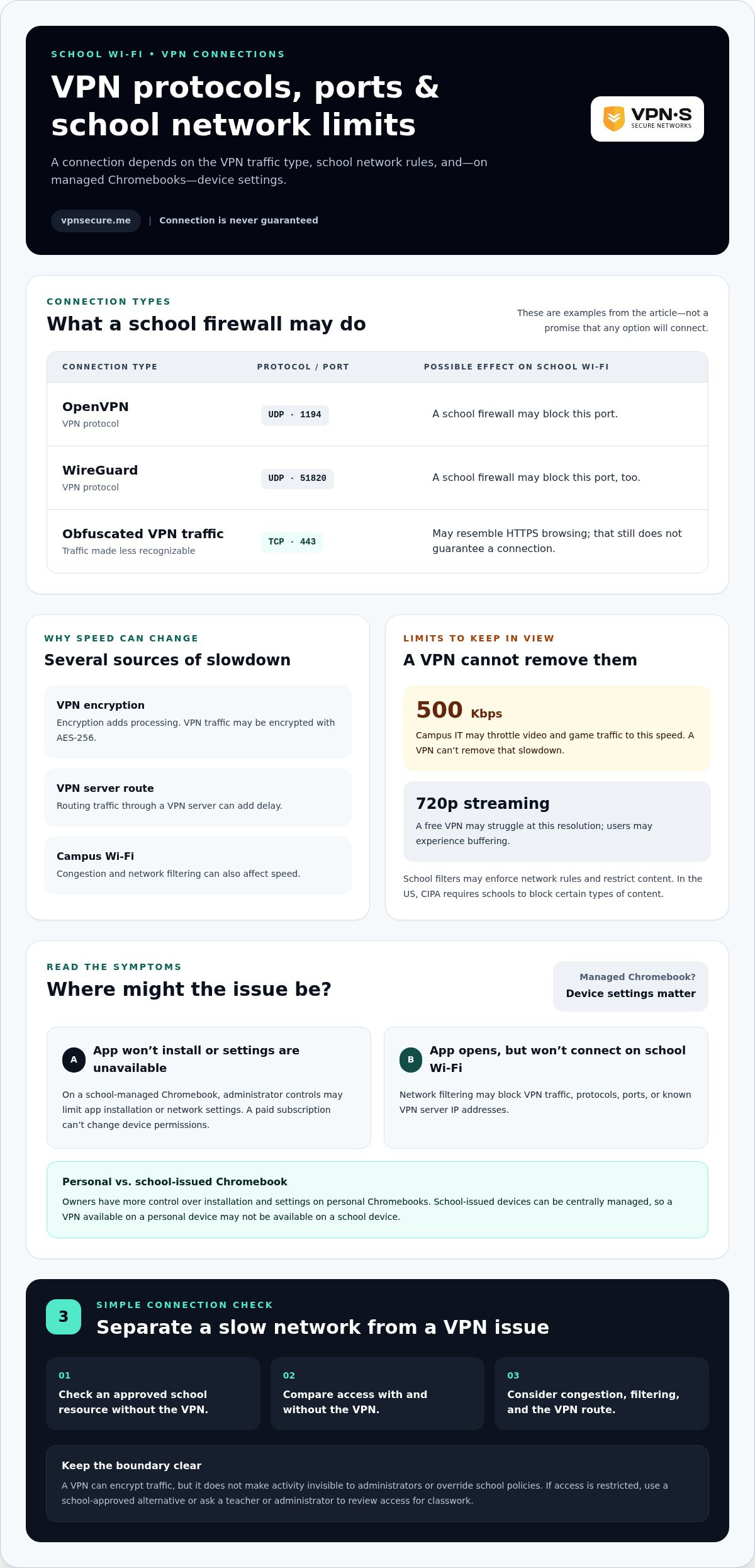
Yes, a VPN can slow your connection. Encryption adds processing, and routing traffic through a VPN server can add delay. VPN traffic may be encrypted with AES-256, while school Wi-Fi congestion and filtering can also affect speed. Campus IT may throttle video and game traffic to 500 Kbps, so a VPN can’t remove that slowdown.
School firewalls may block VPN protocols, ports, or known VPN server IP addresses. OpenVPN uses UDP port 1194 as an example port, and school firewalls may block it. They may also block WireGuard on UDP port 51820. Obfuscated VPN traffic may use TCP port 443 to resemble HTTPS browsing on school networks, but that doesn’t guarantee a connection.
Schools use filters and blocks to enforce network rules and limit access to restricted content. In the US, schools must block certain types of content under the Children’s Internet Protection Act (CIPA). That’s one reason a VPN connection or particular site may be restricted.
This table explains how network rules can affect common VPN connection types:
| Option | Protocol or port | Possible effect on school Wi-Fi |
|---|---|---|
| OpenVPN | UDP port 1194 | May be blocked by a school firewall |
| WireGuard | UDP port 51820 | May be blocked by a school firewall |
| Obfuscated VPN traffic | TCP port 443 | May resemble HTTPS browsing |
A free VPN may also struggle with streaming at 720p, where users may experience buffering. To diagnose a slow connection, compare a permitted school resource with and without the VPN, then consider congestion, filtering, and the VPN route. Don’t try to defeat a school firewall; it may block the VPN or restrict access.
If a site is blocked, use a school-approved alternative or ask a teacher or administrator to review access for your classwork. Choose a VPN only if the school network permits its connection type, then weigh the privacy benefit against any added delay.
Will a free VPN work on school WiFi?
A free VPN may connect if its app works on your device and the school network permits it. A VPN for school Wi-Fi restrictions can’t guarantee access, so prepare in advance and troubleshoot without trying to evade school rules.
Setting Up a VPN Before Connecting
Setting up before arriving on campus is a practical first step, not a way around device controls. School Wi-Fi may block VPN download pages, so install the app and sign in using an accessible connection beforehand. Open the app and review its connection settings before joining the school network. This helps you distinguish an installation problem from a campus connection restriction.
Bypassing School Wi-Fi Restrictions
A VPN can encrypt traffic and may bypass some content filters, but the school network can still block the VPN connection. Connecting successfully doesn’t remove school policies or device-management controls. For a VPN for school Wi-Fi restrictions, first consider whether the network permits the connection and whether your device allows the app. Use school-approved access for classwork and follow acceptable-use rules.
Troubleshooting a Failed Connection
If the VPN won’t connect, work through these checks:
- Confirm the app opens and you’re signed in before joining school Wi-Fi.
- Check internet access without the VPN using an approved site.
- Close and reopen the app, then try connecting again.
- If it still fails, stop rather than changing settings to defeat network controls.
These steps help distinguish app access, sign-in, and network restrictions. On a school-managed Chromebook, administrator settings may also limit app installation or VPN use.
A free option may suit you if it connects on your device and meets your privacy needs. For context on encrypted VPN connections, consider how the VPN handles traffic before relying on it at school.
Can I Use a VPN on School-Issued Chromebooks?
A VPN works on a school-issued Chromebook only if ChromeOS settings and school network policies allow it. Administrators may control app installation on managed devices and limit which network settings you can change. Device permissions, not whether a VPN is free or paid, are the first thing to consider.
Start by checking the Chromebook’s approved app options and available network settings. If the VPN app is blocked or a setting is unavailable, don’t try to bypass the restriction. Administrator controls on a school-managed Chromebook may prevent changes, even when the same VPN works on a personal device.
Use this practical sequence to identify the issue:
- Check whether the VPN app appears in the Chromebook’s approved app options.
- Open the available network settings and look for a VPN configuration option.
- Try connecting only if the app and settings are permitted on the device.
- If access is restricted, ask a teacher or school administrator about approved options.
A missing app and a failed connection indicate different obstacles. If installation is blocked, the device’s app controls are the barrier. If the app opens but won’t connect on school Wi-Fi, network filtering may be blocking VPN traffic. Note which step fails before seeking help so school IT has a specific issue to investigate.
Owners have more control over installation and settings on personal Chromebooks. School-issued Chromebooks can be centrally managed, so a VPN that works on your own device may not be available on a school device. A paid subscription can’t change Chromebook permissions or override school network controls.
Use a school-approved device or network for required coursework, and follow the school’s acceptable-use rules. If a class assignment requires a blocked resource, ask your teacher for an approved way to access it. This helps you get the material you need without changing managed Chromebook settings.
VPN privacy from school network administrators
A VPN changes what school network administrators can see, but it doesn’t make you invisible. Without a VPN, network tools may identify the websites your connection contacts. With an active VPN, traffic between your device and the VPN server is encrypted, limiting what administrators can read in that network traffic.
VPN traffic may use AES-256 encryption. While the VPN is connected, administrators may still see that your device is communicating with a VPN server, along with connection timing and data volume. They may also block that connection. Encryption hides traffic contents, not every sign that you’re online.
School-managed Chromebooks add another layer of controls. Network privacy doesn’t prevent device-level monitoring or restrictions on apps and settings. For example, a school-managed browser or account may apply its own controls even while a VPN encrypts traffic over Wi-Fi. A VPN can’t override those device policies.
Keep these distinctions in mind:
- Network visibility: A VPN encrypts traffic between your device and its server.
- Connection visibility: The school network can still identify a connection to a VPN server.
- Device visibility: School management tools may control activity on an issued Chromebook.
- Account activity: A school account can apply controls independently of Wi-Fi encryption.
For a practical privacy check, identify which device and account you’re using, then confirm that the VPN is connected. Don’t assume you’re protected if the app shows a disconnection or the school device blocks it. Use school-approved resources for coursework, and treat a VPN as a privacy layer, not permission to ignore school rules.
The key takeaway: a VPN can shield the contents of network traffic from ordinary school Wi-Fi monitoring, but it doesn’t conceal the VPN connection itself or disable Chromebook management. Consider network privacy separately from device and account controls before deciding what protection you need.
VPNSecure: Monthly VPN Subscription
VPNSecure’s Monthly VPN Subscription encrypts internet traffic across major devices and follows a zero-logging policy. It’s an option for private browsing on a device and network where VPN use is permitted.
A VPN can add privacy to network traffic, but it won’t override a school firewall, unlock restricted Chromebook settings, or make activity invisible to device administrators. Use it only within your school’s rules. If your school-issued Chromebook blocks VPN apps or settings, a subscription won’t remove those controls.
Choose a monthly subscription if you prefer time-limited access rather than an annual commitment. For schoolwork, use approved sites and devices; use a VPN for privacy where permitted. Contact VPNSecure to learn more about the Monthly VPN Subscription.
Make your next connection a deliberate choice
Your next step isn’t finding a stronger way around a school filter. Decide where you need privacy, which device you’ll use, and whether that network allows a VPN. Keep school-managed devices and personal browsing needs separate, and follow your school’s acceptable-use rules.
Choosing a VPN for school Wi-Fi restrictions means weighing privacy against compatibility. A subscription can protect traffic on a permitted connection, but it can’t grant access to blocked settings or sites. Focus on what you can control: personal devices and networks where VPN use is allowed.
If a paid VPN fits that need, consider whether monthly or annual access suits your plans, or whether a Dedicated IP matches your requirements. Explore VPNSecure’s subscription options and choose your next step with clarity.
Stay informed, respect device rules, and make an informed choice about privacy.
Frequently Asked Questions
Can School Admins See What You Do with a VPN?
Administrators may still see network connection details, but a VPN can limit visibility into the contents of your traffic. For example, they may see your device connect to a VPN server without seeing the pages inside the encrypted connection. A school-managed browser, account, or device may also have separate monitoring or controls, so network encryption isn’t a complete privacy shield.
Is it against the rules to use a VPN on school WiFi?
It depends on the school’s network and device rules. Some acceptable-use policies restrict VPNs or attempts to get around content filters; others may allow VPN use for approved purposes. Read the policy for terms such as “proxy,” “filter,” and “network security.” If you need access for a class assignment, ask your teacher to arrange an approved route rather than bypassing a block.
Why does my VPN connect but nothing loads?
A connected status doesn’t prove that every part of the connection is working. The school network may allow the VPN handshake but restrict traffic afterward, or the VPN route may not reach the site you’re trying to open. Disconnect and test a school-approved page, then reconnect and try another permitted resource. If only one site fails, its own access rules may be the issue.
How do school Wi-Fi filters and VPNs work?
A school filter applies network rules to decide which traffic or websites to allow. A VPN encrypts traffic between your device and its server, so the filter may have less visibility into the contents of that connection. The school can still restrict VPN connections or manage access on its devices. Think of filtering as a checkpoint, not a setting a VPN can automatically erase.
Are VPNs allowed on school networks and school-issued devices?
Permission depends on the school’s rules and the device’s management settings. A personal laptop may let you install an app, while a school-issued Chromebook may prevent installation or changes to network settings. These are separate controls: permission to use a VPN on Wi-Fi doesn’t necessarily mean you can install one on a managed device. Follow the policy that applies to each.
What do school acceptable-use policies say about VPNs?
Acceptable-use policies explain permitted network activity, content restrictions, and rules for school-owned devices. Look for language about VPNs, proxies, filtering, and attempts to bypass security controls. Policies may also describe what administrators can monitor on school networks or accounts. If an assignment requires a blocked resource, ask your teacher for access through an approved channel instead of changing device settings.