



In short
A router can act as a VPN client when its firmware supports a VPN client connection and the VPN service supplies compatible configuration details. The router can then send chosen home or office traffic through the encrypted tunnel, covering devices without VPN apps, but it can reduce speed and make location switching less convenient.
Key takeaways
- A router needs VPN client support to route its connected devices through a commercial VPN service; VPN server support alone solves a different problem.
- Devices on the router's Wi-Fi or Ethernet network can use the router tunnel automatically, while devices on cellular data or another Wi-Fi network do not.
- Manual router setup usually requires an OpenVPN profile or WireGuard configuration details supplied by the VPN service.
- A router VPN can protect devices that cannot run VPN apps, but every device on that routed network normally shares the same VPN exit location.
- Check the router's CPU capacity, DNS handling, firmware support, and recovery options before making router-level VPN routing permanent.
Contents
- Can a router really work as a VPN client?
- Is a router VPN client the same as a VPN server?
- Is it worth putting a VPN on a router?
- Which router VPN setup fits your network?
- What must your router support before you start?
- How do you set up a router as a VPN client?
- What are the downsides of VPN on a router?
- How do you stop a router VPN from leaking or breaking the network?
- What else do people ask about VPNs for routers?
- What should you do next?
Can a router really work as a VPN client?
Yes. A compatible router can initiate a connection to a VPN service, then route traffic from devices on its local network through that connection. This is often called router VPN client mode, VPN client mode, or a VPN gateway setup.
A VPN is only one layer of protection; it does not secure the login to a hosted website or hosting account. If you also manage a website, see this guide to setting up two-factor authentication for website hosting.
The important word is compatible. A normal router is not automatically a VPN router merely because it provides Wi-Fi. Its installed firmware must include a VPN client feature, or it must be capable of running firmware that does. The VPN service must also provide details the router can use, such as an OpenVPN profile or WireGuard configuration.
VPN Secure states that its service supports routers and provides OpenVPN configuration files for its servers; its current download page also describes WireGuard configuration availability. See the available VPN Secure configuration options and supported protocols before choosing a router setup. (vpnsecure.me)
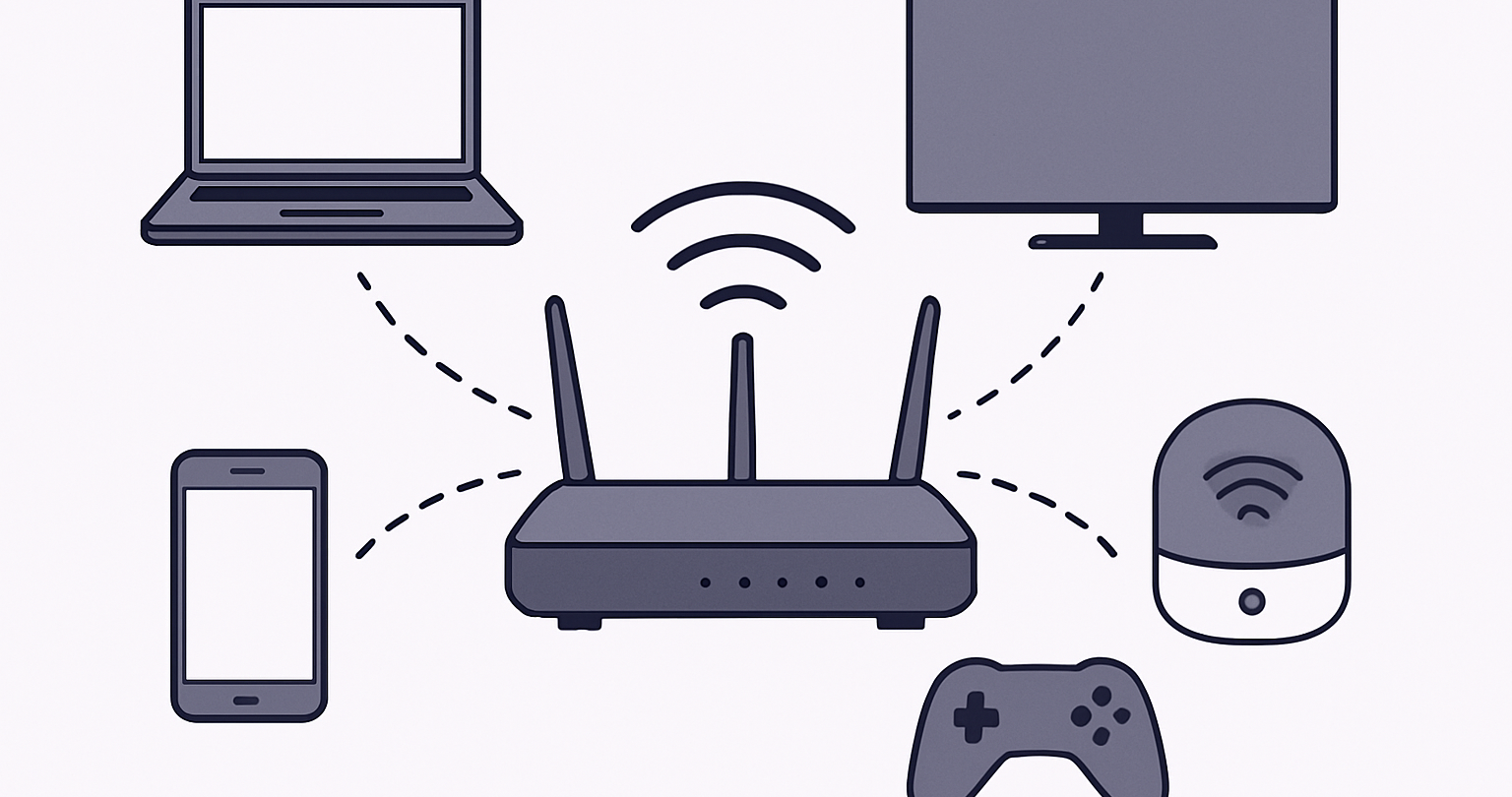
A router-level connection is useful when a network includes televisions, game consoles, media boxes, printers, smart-home devices, or work equipment that cannot install a VPN application. Those devices use the router's route rather than running their own VPN software.
A router VPN client protects the traffic that actually passes through that router, not every internet connection a person owns.
Is a router VPN client the same as a VPN server?
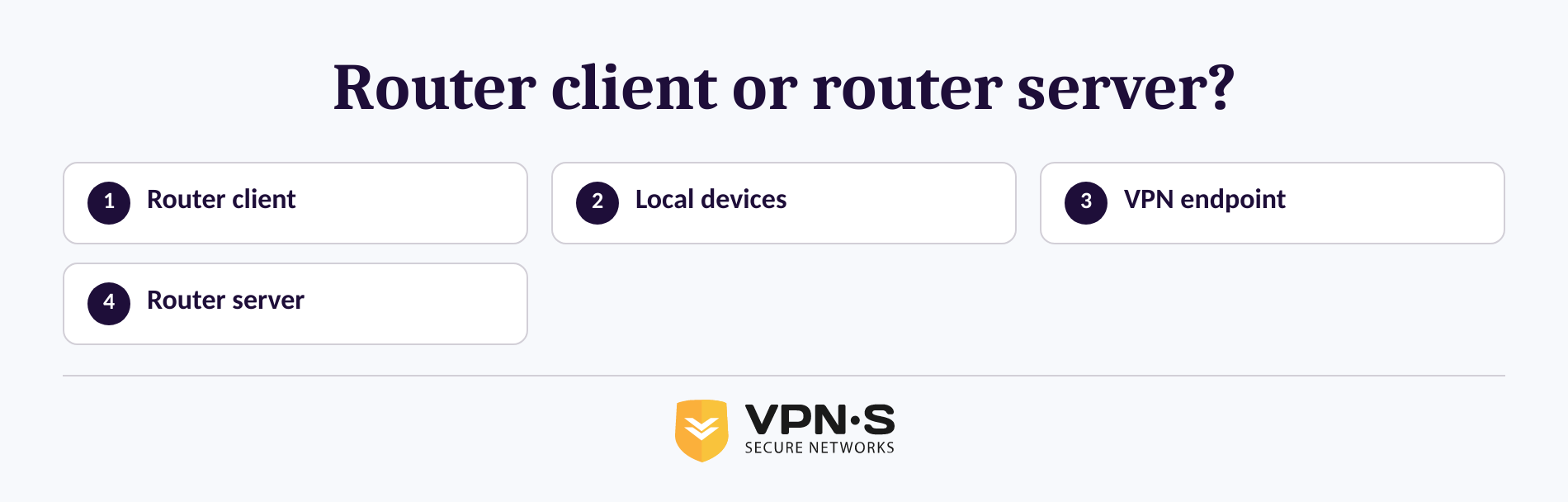
No. A VPN client on the router sends your network's outbound traffic to a VPN service. A VPN server on the router lets an approved device connect back into your home or office network from somewhere else.
The settings can look similar, which makes this one of the easiest setup mistakes to make. If the goal is for a streaming device, console, or household Wi-Fi network to use a VPN service, look for VPN client, VPN client mode, or a protocol-specific client setting. If the goal is to reach a home file server while traveling, that is remote-access server mode instead.
A router working as a client initiates the tunnel to a remote VPN endpoint. A router working as a server waits for an outside device to connect into the local network. Official OpenWrt documentation makes the same practical distinction: a router configured to connect to a commercial VPN service is operating as a client, while a router configured for remote access is acting as a server. (openwrt.org)
This distinction affects the whole plan. Client mode is about outbound routing for devices at home or in an office. Server mode is about safely reaching a local network from elsewhere.
A VPN client sends local traffic out through a VPN service; a VPN server lets remote devices come back into the local network.
Is it worth putting a VPN on a router?
A router VPN is worth considering when several devices need the same always-on connection or when important devices cannot install a VPN app. It is less suitable when people on the same network often need different VPN locations, different rules, or the fastest possible connection.
The strongest reason to use routers and VPN together is consistency. Once the router tunnel is working, a device that joins that Wi-Fi network can use the intended route without an individual installation, login, or reconnect step. That can reduce the chance that a television, console, or new household device is left outside the VPN connection by accident.
It also simplifies networks with mixed devices. A laptop can still run a separate VPN app when it needs a different location, while a smart television stays on the router-level route. That arrangement needs thought: the laptop may be double-tunneled if its app connects while the router tunnel is already active. In most cases, choose one route for that device at a time unless a specific network design requires otherwise.
Router-level routing does not make a person anonymous, stop phishing, remove malware, or secure an account with a weak password. It encrypts the connection between the router and the VPN endpoint and changes the public-facing IP address seen by sites for traffic using that route. For the wider limits of VPN protection, review how a VPN tunnel works.
It is usually worth using a router VPN for shared, app-free devices and consistent coverage, not for every network or every person.
Which router VPN setup fits your network?
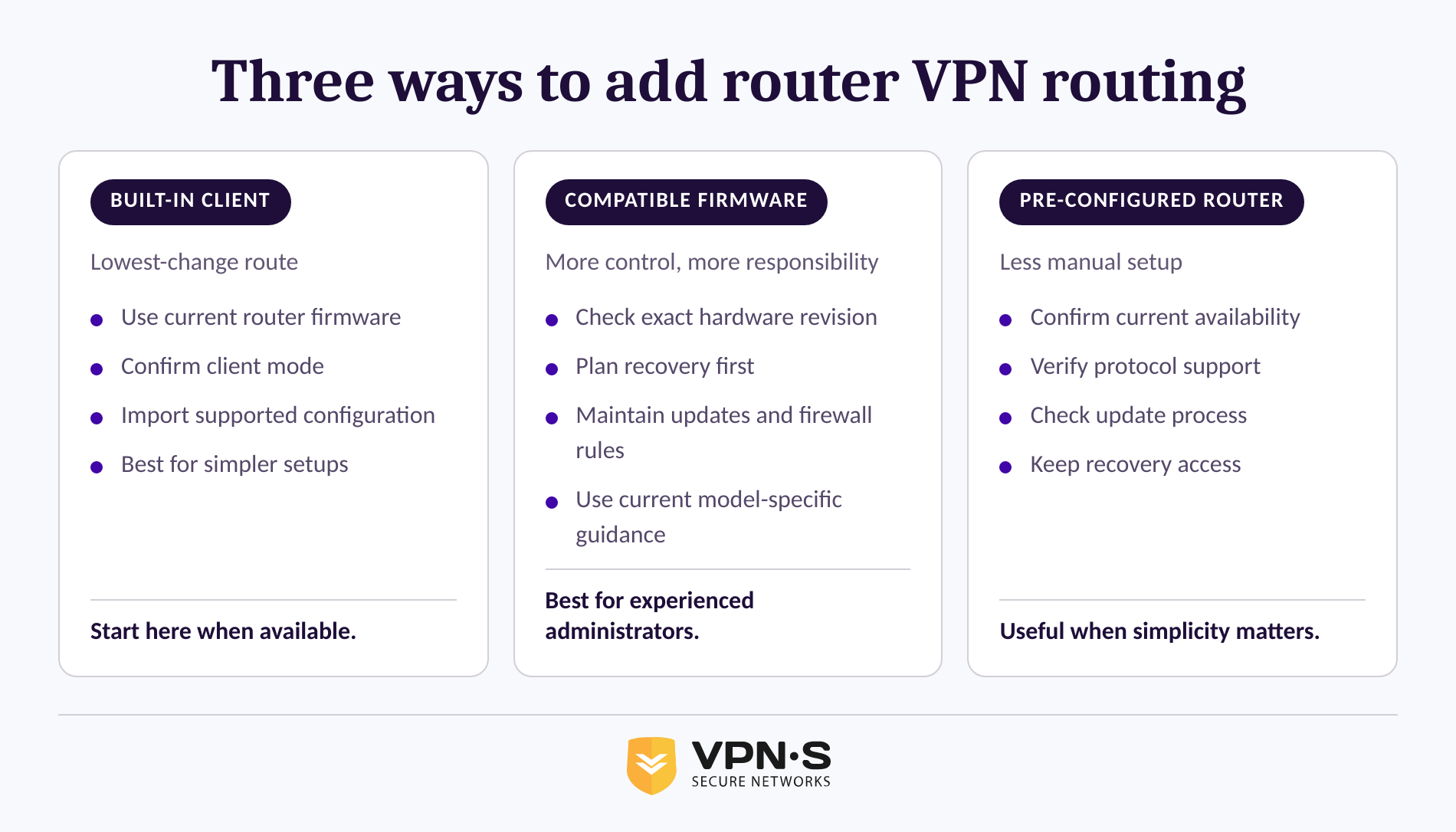
There are three practical routes: use built-in client support, install compatible firmware where appropriate, or use pre-configured hardware. The right choice depends more on the router's support, the administrator's comfort level, and the need for recovery than on a feature list.
Use the router's built-in VPN client
This is the simplest path when the router's current firmware already supports the protocol and client role you need. The router interface may offer a place to upload an OpenVPN profile, enter WireGuard peer details, choose whether all traffic uses the tunnel, and configure DNS behavior.
Read the router's own documentation before importing anything. Some interfaces support only one protocol, have limits on profile format, or apply VPN routing only to selected devices. Do not rely on a label that merely says VPN supported. Confirm that it says client and names the supported protocol.
Use compatible firmware
Some technically capable users choose firmware designed for more network control. This can provide client-mode support where the original interface does not, but it also creates responsibility for installation, updates, recovery, firewall rules, and compatibility.
Installing replacement firmware can go wrong. It may affect warranty coverage, Wi-Fi performance, mesh features, or the ability to recover from a failed update. This option is best for someone who can identify the exact hardware revision, follow current documentation, and restore the router if needed.
Use a pre-configured VPN router
Pre-configured hardware can reduce the risk of entering certificates, keys, routes, and firewall rules manually. It can be a sensible option for a small office, a household with many app-free devices, or anyone who wants router-level VPN coverage without modifying firmware.
VPN Secure has published router-focused materials, but product stock and the current purchase flow should be confirmed directly before relying on hardware availability. The deciding question is not whether pre-configured hardware sounds easier. It is whether it supports the required protocol, offers a manageable update path, and can be recovered if settings need to change.
Choose built-in client support for the lowest risk, compatible firmware for greater control, and pre-configured hardware when simpler administration matters more than hands-on configuration.
What must your router support before you start?
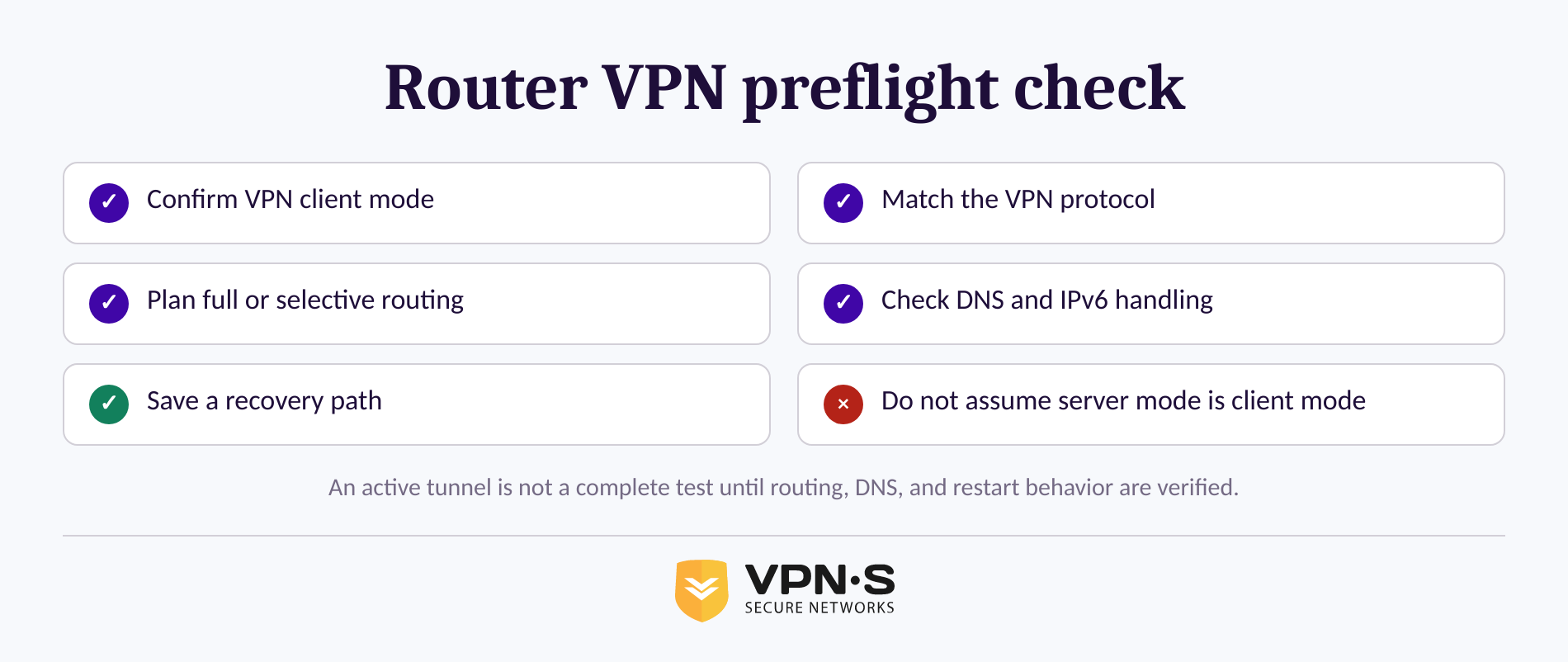
Check client-mode support, protocol compatibility, configuration import options, performance capacity, and recovery access before changing settings. A successful connection indicator is not enough if the router cannot route DNS correctly or cannot keep the tunnel active after a restart.
Use this checklist before beginning:
- Confirm the exact router model and hardware revision. Similar model names can use different processors or firmware.
- Look specifically for VPN client mode. A VPN server option does not automatically provide outbound VPN routing.
- Match the protocol. OpenVPN requires a compatible client profile. WireGuard commonly requires interface addresses, peer public-key information, endpoint details, and routing rules.
- Check whether the router supports full-tunnel routing. A full tunnel sends ordinary internet traffic through the VPN connection. Selective routing sends only chosen devices or destinations through it.
- Find a recovery path. Save the original settings, keep a wired connection available if possible, and know how to disable the VPN client if the internet stops working.
- Consider processor headroom. VPN encryption and routing add work. A connection that feels fine with one device may slow down as more devices use the tunnel.
- Review DNS and IPv6 settings. A router can show an active VPN connection while DNS queries or IPv6 traffic follow a route you did not intend.
The current OpenWrt OpenVPN client documentation requires both a saved client profile and firewall configuration. Its WireGuard client documentation likewise includes peer, route, firewall, and handshake checks. Those requirements show why a green connection badge alone is not a complete test. (openwrt.org)
A router is ready only when its client mode, protocol, routing, DNS behavior, and recovery path have all been checked.
How do you set up a router as a VPN client?
The exact buttons differ by router, but the safe sequence is consistent: gather the right configuration, make a backup, add the client connection, decide what should use it, and test from a real connected device. Do not copy settings from a guide written for another router model or older firmware version.
1. Collect configuration details from the VPN service
For OpenVPN, this may be a configuration profile and credentials or certificates. For WireGuard, it may be a configuration file or fields for the interface, peer, endpoint, and allowed IP ranges. VPN Secure says its servers support OpenVPN and that users can obtain configuration material through the member area; its download page also describes WireGuard configurations. (vpnsecure.me)
Keep private keys and downloaded configuration files private. Treat them like account credentials. Do not paste them into public support forums, screenshots, or shared documents.
2. Back up the router and update only when appropriate
Export the router configuration if the interface supports it. Record the current Wi-Fi name, local address range, internet settings, and administrator access method. If a firmware update is required for current client support, use the exact update process published for that model.
Avoid making the first change remotely. If the VPN route blocks access to the administration page, a person on the local network may need to reconnect by Ethernet or reset the router. A wired laptop is the safer setup device when one is available.
3. Add the VPN client profile and choose the routing scope
Upload the profile or enter the connection details in the router's VPN client section. Then choose whether all traffic should use the VPN or only specified devices should use it.
A full-tunnel setup is easier to reason about because the intended route is consistent for connected devices. Selective routing is more flexible when a work computer, game console, or smart device must keep its normal connection. It also introduces more places for rules to conflict, so document which device belongs in which route.
OpenVPN's official documentation describes connection profiles as the configuration used to connect a client to a compatible VPN service. Current router-focused OpenVPN documentation also shows that profile import and firewall handling are separate parts of a working client configuration. (openvpn.net)
4. Connect, restart, and test from more than one device
After connecting, test an Ethernet-connected device and a Wi-Fi-connected device. Confirm that each can browse normally, check the public IP address shown to websites, and verify that DNS requests are following the intended path. If the router supports IPv6, test that too.
Restart the router once the setup appears correct. A router VPN that works only until the first reboot is not an always-on solution. Check that the client reconnects and that the routing policy remains active after the restart.
The setup is complete only after connected devices, DNS behavior, and restart behavior all match the routing plan.
What are the downsides of VPN on a router?
The main trade-offs are performance, shared location, less per-device control, and more difficult troubleshooting. Router VPN routing centralizes protection, but it also centralizes failure: if the router tunnel fails, every device using it can be affected.
Encryption can reduce usable speed
The router must encrypt and decrypt traffic for every device using the tunnel. Faster broadband does not remove this processing work. A router with limited processing capacity can become the bottleneck, especially during high-bandwidth streaming, downloads, video calls, or several active devices.
Test the connection during normal household or office use, not just with one speed test. The useful question is whether the network remains responsive when the devices that matter are active at the same time.
Everyone on that route shares one exit location
A router VPN normally gives routed devices the same external location. That is convenient for a television or console, but inconvenient when one person needs a different country or a work system expects a normal local IP address.
Selective routing can help, but it increases configuration complexity. Another option is to keep certain devices on the normal network or let a laptop use its own VPN application when it needs a different connection. VPN Secure offers VPN applications for supported devices, which can be useful when a device needs a separate route from the rest of the network.
Troubleshooting can be less obvious
When an app-based VPN fails, the problem is often visible on that one device. With a router VPN, a failed profile, DNS rule, firewall rule, or tunnel reconnect can affect devices that never show a VPN status screen.
Keep a simple record of the selected protocol, server location, routing scope, and any custom DNS or firewall changes. That record makes it far easier to reverse a change or explain the setup to support staff.
Router VPNs exchange per-device flexibility for network-wide coverage, so use them where consistency matters more than individual location switching.
How do you stop a router VPN from leaking or breaking the network?

Use a deliberate routing plan, test DNS and IP behavior from actual connected devices, and decide in advance what should happen if the VPN disconnects. The goal is not merely to connect the tunnel. The goal is to prevent unintended fallback to the ordinary internet route.
Start with the basics:
- Check the public IP address from a device connected to the router by Wi-Fi and again from a device connected by Ethernet.
- Check DNS behavior from a connected device, especially if custom DNS, IPv6, or split tunneling is enabled.
- Confirm that a phone on cellular data does not appear in the test as part of the home router network. Cellular traffic does not pass through the home router.
- If the router supports policy-based routing, verify that each excluded device truly uses the expected normal connection.
- Decide whether internet access should stop when the VPN disconnects or continue over the normal route. A block-on-failure rule can improve privacy expectations but can also interrupt every connected device when the tunnel has a problem.
Current OpenWrt client guidance recommends checking routing, IP address, DNS behavior, firewall configuration, and recent WireGuard handshakes as part of verification and troubleshooting. (openwrt.org)
A router VPN is trustworthy only when the intended devices use the intended route after a reboot and when the expected failure behavior has been tested.
What else do people ask about VPNs for routers?
Is it worth putting a VPN on a router?
A router-level VPN is worth it when several devices need the same always-on connection or some cannot install a VPN app. It is less useful when different people regularly need different locations, or when the router cannot maintain acceptable speed under encrypted traffic. Test the network before making the change permanent.
What are the downsides of VPN on a router?
The main downsides are slower throughput on limited hardware, one shared VPN location for routed devices, reduced per-device flexibility, and more complicated troubleshooting. A router VPN can also affect every connected device when its tunnel, DNS settings, or firewall rules fail, so keep a recovery plan.
Is it legal to install a VPN on a router?
Installing a VPN client on equipment you own is a technical configuration, but laws and restrictions on VPN use vary by jurisdiction. A VPN does not make illegal activity lawful or override a service's terms. Check the rules that apply where the router and its users are located.
The practical answer is to use a router VPN for legitimate privacy and network-management purposes while checking local requirements when travel, restricted networks, or regulated services are involved.
What should you do next?
Start by checking whether the existing router explicitly supports the VPN client role and the chosen protocol. If it does, collect the right configuration details, back up the router, test one device first, and expand only after IP, DNS, and restart checks pass.
If manual configuration is not a good fit, review VPN Secure's available VPN options and contact support to confirm the best current router path for the exact model and network plan.
The best router VPN setup is the one that keeps the right devices on the intended route without making the network hard to recover or manage.