




Your browser isn’t a privacy force field. Even with protective settings switched on, tracking, risky links, and unfamiliar public Wi-Fi can still expose you to unwanted risks. A secure online browsing solution works in layers, not through one magic setting or app.
It makes sense to want a VPN to cover every gap, especially when you’re browsing from a café or traveling. But a VPN protects your internet connection. It doesn’t replace browser updates, careful choices about extensions and permissions, or antivirus software. Each layer has a different job.
This guide gives you a practical plan for safer everyday browsing. You’ll learn which browser settings matter, which habits help you avoid common traps, and where a VPN can add connection privacy, along with what it can’t do. By the end, you’ll know how to combine these protections without expecting any one tool to make you completely anonymous or immune to threats.
Key Takeaways
- A secure online browsing solution layers browser defenses, safer habits, and connection privacy rather than relying on one tool.
- Keep your browser updated, review site permissions, and limit extensions to reduce avoidable exposure.
- Your browser, a VPN, and your own choices protect different parts of your online activity. None promises complete anonymity.
- Use a simple safety routine at home, and take extra care before signing in to sensitive accounts on public Wi-Fi.
- VPN Secure’s encrypted connection can add a privacy layer across supported devices, alongside browser safeguards, not instead of them.
What Makes an Online Browsing Solution Secure?
A secure online browsing solution reduces the chances that everyday internet use will compromise your device, accounts, personal data, or connection privacy. It combines tools and choices that address different risks. No single browser setting, security app, or VPN blocks every threat, and none makes you completely anonymous.
Security and privacy overlap, but they aren’t the same. Security is about preventing harm, such as a malicious download or a fake sign-in page stealing your password. Privacy is about limiting who can observe or collect information about your browsing. A site can be free of malware yet still track your activity. Likewise, a private connection doesn’t make a deceptive website trustworthy.
Think in layers. Your browser can help manage threats you encounter on websites. Your device and accounts need their own safeguards. Your network connection raises separate privacy questions, especially when you connect somewhere unfamiliar. The goal isn’t to eliminate every possible risk. It’s to reduce avoidable exposure and make it harder for one mistake to compromise everything.
Which risks can affect everyday browsing?
Risk can start with a single click. A phishing link may lead to a convincing but fraudulent login page. A malicious download can carry harmful software, while outdated browser software may lack fixes for known weaknesses. Intrusive tracking is different: it can follow browsing activity or build a profile without necessarily infecting your device.
Location matters, too. On café Wi-Fi, an unsafe website is a website-level risk; the shared network is a separate connection-level concern. Don’t assume a familiar-looking network name proves it’s trustworthy, and don’t enter sensitive information on a page just because the Wi-Fi seems secure.
Where does a browser fit in online security?
Your browser is the front line for web activity. Updates can address discovered weaknesses. Site isolation helps keep activity from different sites separated, while permission controls let you decide whether a page can use features such as your camera or location. Built-in warnings may flag some deceptive or dangerous destinations, but they can’t catch every threat. Browser security covers these kinds of protections and risks.
These defenses mostly apply inside the browser. They don’t automatically protect every app on your device or make every network connection private. A browser warning can help you pause before opening a suspicious page, but it can’t replace your judgment, safe account practices, or attention to the connection you’re using.
Stronger browsing comes from matching each safeguard to its job. Keep browser protections active, treat unexpected links with caution, and consider network privacy separately. A VPN can add a connection-privacy layer, but it won’t make a phishing page safe or replace browser updates. Each layer matters because it covers a different part of your online activity.
How Browser Settings and Safe Habits Reduce Risk
Browser protections work best when they’re maintained, not set once and forgotten. For a secure online browsing solution, make a short review part of your routine and repeat it on each device you use. Menu names vary between browsers, but the priorities stay the same: updates, permissions, extensions, and account protection.
Focus first on the habits with the biggest practical impact: update promptly, limit site access, and remove extensions you no longer need.
Which browser settings should you review first?
Start with updates. Turn on automatic browser updates where available, then restart the browser when prompted so the changes can take effect. Check that your phone’s operating system and desktop software are current too. Updating won’t prevent every vulnerability, but leaving known fixes unapplied can create avoidable gaps.
Next, review permissions. A site that needs your location for a map may not need it afterward, and a page asking for microphone access should have a clear reason. Check camera, microphone, location, and notification access site by site. Remove permissions you granted casually or no longer need.
- Cookies: Use your browser’s controls to clear cookies or limit some types. This can reduce certain forms of tracking, but it won’t stop all tracking methods.
- Warnings: Keep built-in protection against suspicious sites enabled. Treat a warning as a reason to pause, and remember that not every harmful page will be flagged.
- Across devices: Repeat the review on mobile. A setting changed on your laptop may not apply to your phone or tablet.
Keep the routine simple: after an update, check that it installed, restart if needed, then review permissions and browser add-ons. A quick recurring check is easier to maintain than a long security overhaul you never repeat.
How can you reduce risks from extensions and accounts?
Extensions can add useful features, but each one may ask to access browsing data or parts of a site. Install only what you need, and read the requested permissions before approving. If an extension asks for access that doesn’t fit its purpose, don’t grant it. Remove tools you no longer use or trust.
Protect the accounts you use to reset other accounts first, such as your primary email. Use a different, strong password for each important login so one exposed password can’t unlock several accounts. Turn on multifactor authentication where available. It adds a verification step beyond the password, making a stolen password less useful on its own.
These habits reduce exposure, but they can’t erase every browser flaw or stop every deceptive page. Browser settings also don’t cover all activity from other apps or the network connection itself. For that separate layer, a VPN connection privacy service can encrypt traffic between your device and the VPN server. It complements browser upkeep rather than replacing it.
Browser Security vs. VPN: What Each Layer Actually Protects
A browser and a VPN protect different parts of your online activity. The browser helps manage what happens on web pages. A VPN encrypts traffic between your device and the VPN server. Your choices help you avoid traps neither tool can judge perfectly. A secure online browsing solution combines these layers instead of asking one to do every job.
Browser protections: Updates, site warnings, and permission controls help reduce risks tied to browser activity. They don’t secure every app or connection on your device.
VPN connection encryption: A VPN protects traffic between your device and its VPN server. It doesn’t make a website trustworthy or prevent every kind of tracking.
Safe user behavior: Checking links, limiting what you share, and protecting your accounts can help you avoid scams and reduce exposure. Good habits don’t replace technical protections.
What does a VPN add to secure browsing?
A VPN creates an encrypted connection between your device and the VPN server. This can help protect traffic on that part of the route, which is useful to consider when connecting through public or unfamiliar Wi-Fi. It adds connection privacy, not a shield around every action you take online.
Once traffic reaches a website or service, that destination can still receive information you submit, such as login details or form entries. A VPN doesn’t make those details invisible to the site you choose to share them with.
What can a VPN not do?
Encryption doesn’t make a phishing link safe. If you enter a password on a fake sign-in page, the VPN can’t determine that the page is fraudulent or prevent you from sharing your credentials. It also doesn’t remove malware from a download or replace browser updates and careful permission choices.
Tracking can continue in other ways. A website may recognize a browser through characteristics it can observe, and signing in ties activity to your account. A VPN doesn’t guarantee anonymity or access to a particular website or service.
So, does a VPN replace browser security? No. It complements it. Keep your browser protections current and use caution with links, extensions, and account sign-ins. Add a VPN when you want an encrypted connection between your device and the VPN server, particularly on a network you don’t know well. Treat each layer as a tool for a specific job, not a promise that nothing can go wrong.
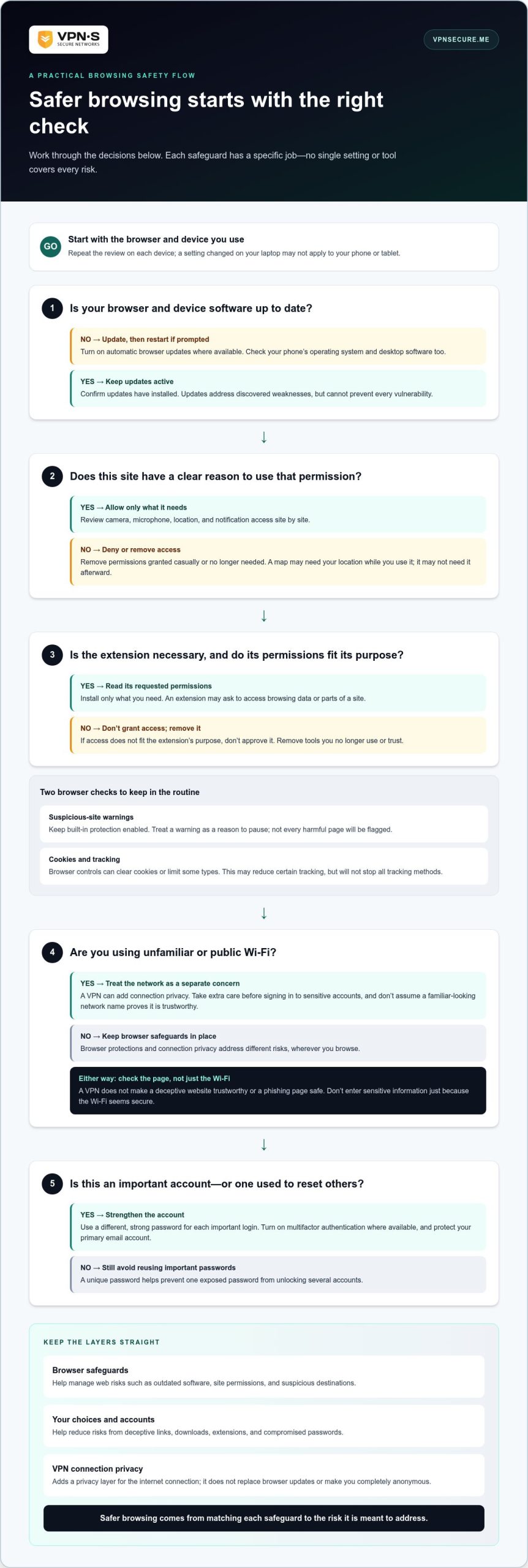
Safer Browsing Checklist for Home and Public Wi-Fi
The safest routine depends on where you’re connecting. At home, keep your browser and device updated, and stay alert for suspicious links. On shared or public Wi-Fi, add a few extra checks before signing in or sharing sensitive information. A secure online browsing solution is a repeatable set of habits, with connection privacy added when it suits the situation.
What should you do before opening a website?
Pause before following links in messages about payments, account problems, or urgent security alerts. Check the domain carefully for misspellings or unexpected words, and go to the service directly if a message feels suspicious. Don’t open unexpected downloads just because a page or email urges you to act fast. Browser warnings are useful signals, but they can’t identify every risky destination.
How should you browse on public Wi-Fi?
On a network you don’t trust, avoid sensitive accounts when practical. If you need to connect, a VPN can encrypt traffic between your device and the VPN server, adding a layer of connection privacy. It won’t make a deceptive site safe, so verify the destination and use the account’s own security measures. Turn off unnecessary device sharing and disconnect from the network when you’re done.
At home, your regular routine may be enough for everyday tasks: maintain updates, check links, and limit what sites can access. Public Wi-Fi calls for more caution because you have less control over the network. A VPN can be useful there, but it isn’t mandatory for every browsing session and doesn’t replace careful habits.
Save this checklist and repeat it on each device:
- Update: Install browser and device updates, then restart if needed.
- Check: Inspect the website address before entering a password or payment details.
- Limit: Allow only necessary site permissions and turn off device sharing you don’t need.
- Protect: Use unique passwords and multifactor authentication for sensitive accounts.
- On public Wi-Fi: Avoid sensitive tasks when practical, use a VPN for connection encryption when appropriate, and disconnect when finished.
Make the routine fit the moment. If you’re checking a general news page at home, focus on updates and trustworthy links. If you’re handling a sensitive account on café Wi-Fi, consider postponing the task or adding a VPN connection layer, while still checking the site and protecting the account itself.
For an added connection-privacy layer on unfamiliar networks, choose a VPN subscription that fits your browsing routine.
How VPN Secure Fits into a Secure Online Browsing Solution
VPN Secure adds a connection-privacy layer to the routine in this guide. It encrypts internet traffic between your device and the VPN server, complementing browser updates, careful permission choices, and safe account habits. It isn’t a complete security suite, and it doesn’t remove malware, make suspicious links safe, or guarantee anonymity.
That distinction matters. A VPN focuses on the connection, not every risk you face online. Keep your browser protections active and continue checking websites and downloads. Use the VPN as one part of a broader plan, especially when you want an encrypted connection while browsing on a network you don’t control.
Which VPN Secure details matter for everyday browsing?
VPN Secure supports major devices and offers multi-device support, so you can use the connection-privacy layer across the devices you browse with. The service includes unlimited bandwidth and servers in more than 40 countries. Server locations provide connection options, not a promise that a specific website or service will be accessible.
VPN Secure describes its service as no-log and is based in the Bahamas. Treat these as privacy-policy and jurisdiction details, not guarantees of anonymity or complete privacy. Your online accounts, the information you submit to websites, and other identifying signals can still matter.
- Encrypted traffic: Adds privacy to the connection between your device and the VPN server.
- Device support: Helps extend that connection layer across supported devices.
- Server choice: Offers location options, without guaranteeing access or changing a website’s own rules.
- Privacy claims: Read the current policy to understand how the no-log description is defined.
How can readers make an informed next move?
First, keep the essentials in place: update your browser, limit site permissions, and protect important accounts with unique passwords and multifactor authentication. Then decide whether connection encryption fits your routine, such as when browsing on unfamiliar Wi-Fi. A VPN adds a layer; it doesn’t replace these habits or make every website safe.
VPN Secure offers a 30-day money-back guarantee. Review the published terms to understand how the guarantee applies. It’s one practical detail to weigh as you consider whether a VPN subscription fits your everyday browsing needs.
A secure online browsing solution is strongest when each layer has a clear job. If you’re ready to add connection privacy to your browsing routine, explore VPN Secure subscriptions and choose the next step that suits your needs.
Make Your Next Browse a Safer One
Privacy isn’t a switch you flip once. It’s a set of choices you keep making as you browse, sign in, install apps, and connect from new places. Start with one small improvement today, then make it part of your routine. A secure online browsing solution should fit the way you actually use the internet, not leave you relying on a tool to make every decision for you.
If you want to add encrypted connection privacy to your setup, explore VPN Secure. Use it alongside your browser’s protections and the habits that keep your accounts and data safer. No single layer can promise complete protection, but a thoughtful setup puts you in a stronger position to browse with confidence.
Take the next step at your own pace. Better browsing protection starts with choices you can maintain.
Frequently Asked Questions
Is a VPN enough to make online browsing secure?
No. A VPN helps protect the connection between your device and its VPN server, but it can’t judge whether a page is a scam or clean an infected device. A secure online browsing solution also depends on what you click and how you protect accounts. For example, before approving a password-reset request, open the service’s app or type its address yourself instead of following an unexpected message link.
Can a VPN protect me on public Wi-Fi?
A VPN can encrypt traffic between your device and its VPN server while you use public Wi-Fi, adding a privacy layer on a network you don’t control. It doesn’t make a malicious page safe or block every device threat. If you need to check a work account at an airport, confirm the address carefully, avoid unexpected downloads, and keep your device software current.
What is the difference between a secure browser and a VPN?
A secure browser focuses on web activity, with features such as updates, site protections, and permission controls. A VPN focuses on encrypting traffic between your device and its server. They cover different parts of browsing, so neither replaces the other. For example, use browser safeguards to reduce exposure to a suspicious page, and consider a VPN when you want added privacy for the connection itself.
Does a VPN stop websites from tracking me?
No. A VPN can change the IP address a website sees, but cookies, browser fingerprinting, and account sign-ins can still help connect activity to you. Information you submit, such as an email address in a form, can also identify you directly. Review privacy controls in your browser, clear stored site data when appropriate, and avoid signing in if you don’t need an account for the task.
Should I use a VPN every time I browse?
Not necessarily. Decide based on your privacy needs, the network, and what you’re doing. You might use a VPN for general browsing on hotel Wi-Fi, while a low-risk task on a trusted home network may not call for the same choice. Either way, keep browser protections current and be cautious with links. A VPN adds connection privacy, not a pass to ignore basic precautions.
How do I make my browser safer without installing extra software?
Start with your browser’s built-in controls. Enable updates, remove extensions you don’t use, and review which sites can access your location, camera, microphone, or notifications. Adjust cookie and tracking settings to suit your privacy preferences, but don’t expect them to block every tracker. Before signing in, check the address bar. For important accounts, use unique passwords and turn on multifactor authentication where available.
Does incognito mode hide my browsing from websites or my network?
No. Incognito or private mode mainly limits what your browser stores on the device after the session, which can help when you share a computer. It doesn’t make your activity invisible to websites or the network you use, and signing in still links activity to your account. Use private mode when you don’t want a session saved in local browsing history, not as a substitute for connection privacy.