
Secure your Linux system with a powerful and privacy-focused VPN. Enjoy encrypted connections, safe browsing, and unrestricted internet access across every network.
View Install Instructions
VPNSecure is distributed from repo.vpnsecure.me as signed apt (Debian/Ubuntu) and dnf (Fedora) packages. Once the repository is added, you get automatic updates through your normal system update process.
All packages are signed with the VPNSecure Package Signing key (fingerprint FADF 261E 171A 669C 075D 90D9 F420 8074 18B0 D416).
Pick the codename for your release. Each release has its own package built against that release's libraries.
| Distribution | Codename |
|---|---|
| Ubuntu 26.04 LTS | resolute |
| Ubuntu 24.04 LTS | noble |
| Ubuntu 22.04 LTS | jammy |
| Debian 13 | trixie |
| Debian 12 | bookworm |
Running a release that isn't listed (e.g. an Ubuntu interim)? Use the nearest older codename — the packages are forward-compatible.
# 1. Install the signing key
sudo install -d -m 0755 /usr/share/keyrings
curl -fsSL https://repo.vpnsecure.me/vpnsecure-archive-keyring.gpg \
  | sudo tee /usr/share/keyrings/vpnsecure-archive-keyring.gpg >/dev/null

# 2. Add the repository (set CODENAME first, e.g. CODENAME=noble)
echo "deb [arch=amd64 signed-by=/usr/share/keyrings/vpnsecure-archive-keyring.gpg] https://repo.vpnsecure.me/apt CODENAME main" \
  | sudo tee /etc/apt/sources.list.d/vpnsecure.list >/dev/null

# 3. Install
sudo apt update
sudo apt install vpnsecureAdd the repository and install — two commands, done.
sudo dnf config-manager addrepo --from-repofile=https://repo.vpnsecure.me/vpnsecure.repo
sudo dnf install vpnsecure
On older Fedora, use: sudo dnf config-manager --add-repo https://repo.vpnsecure.me/vpnsecure.repo

A background service, vpnsecure-manager, is installed and started automatically — it manages the VPN tunnel. Launch VPNSecure from your applications menu, or run "vpnsecure" from a terminal.
systemctl status vpnsecure-managerOn the GNOME desktop the tray icon needs the AppIndicator extension to be visible; without it the app still works, but closing the window hides it with no tray icon to reopen from.
Updates ship through the repository — your normal system update pulls them. For fully automatic updates, enable unattended-upgrades (Debian/Ubuntu) or dnf-automatic (Fedora).
sudo apt update && sudo apt upgrade      # Debian/Ubuntu
sudo dnf upgrade --refresh vpnsecure # Fedorasudo apt remove vpnsecure # Debian/Ubuntu
sudo dnf remove vpnsecure # Fedora
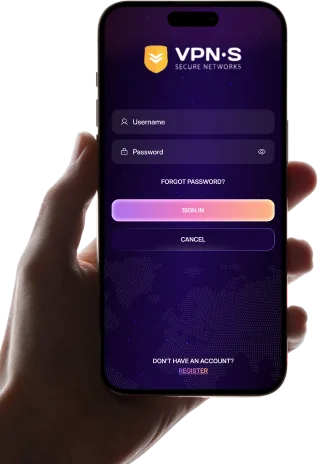
Once launched you will receive the program login window. Please proceed to enter your login details and connect to your desired server.
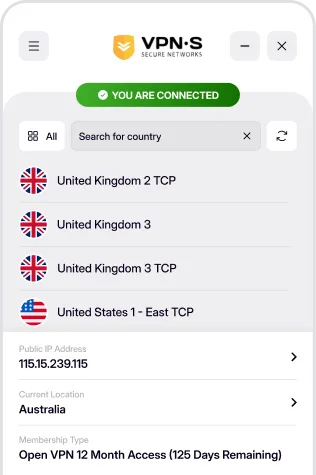
Once you have downloaded and installed the appropriate app from above, enabling your VPN is as simple as open, click and go!
Login, then choose a server to connect to & connect! You are now enjoying the internet as it should be. Open, secure and anonymously.

Enter your credentials to access the app.

Select a location from the list to connect to.
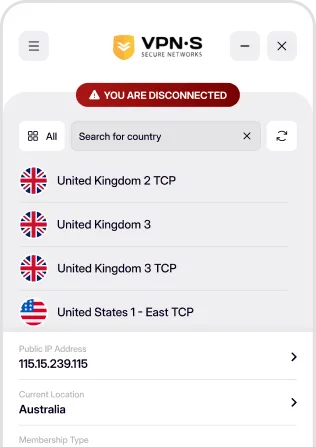

Enjoy a secure, private and anonymous internet experience.