


















VPN & Privacy
VPN options for Mac compared by privacy, protocols, and protection
A Mac’s polished interface isn’t a privacy shield. Yes, MacBook Air and MacBook Pro can use a VPN, and macOS includes a client that supports L2TP,...
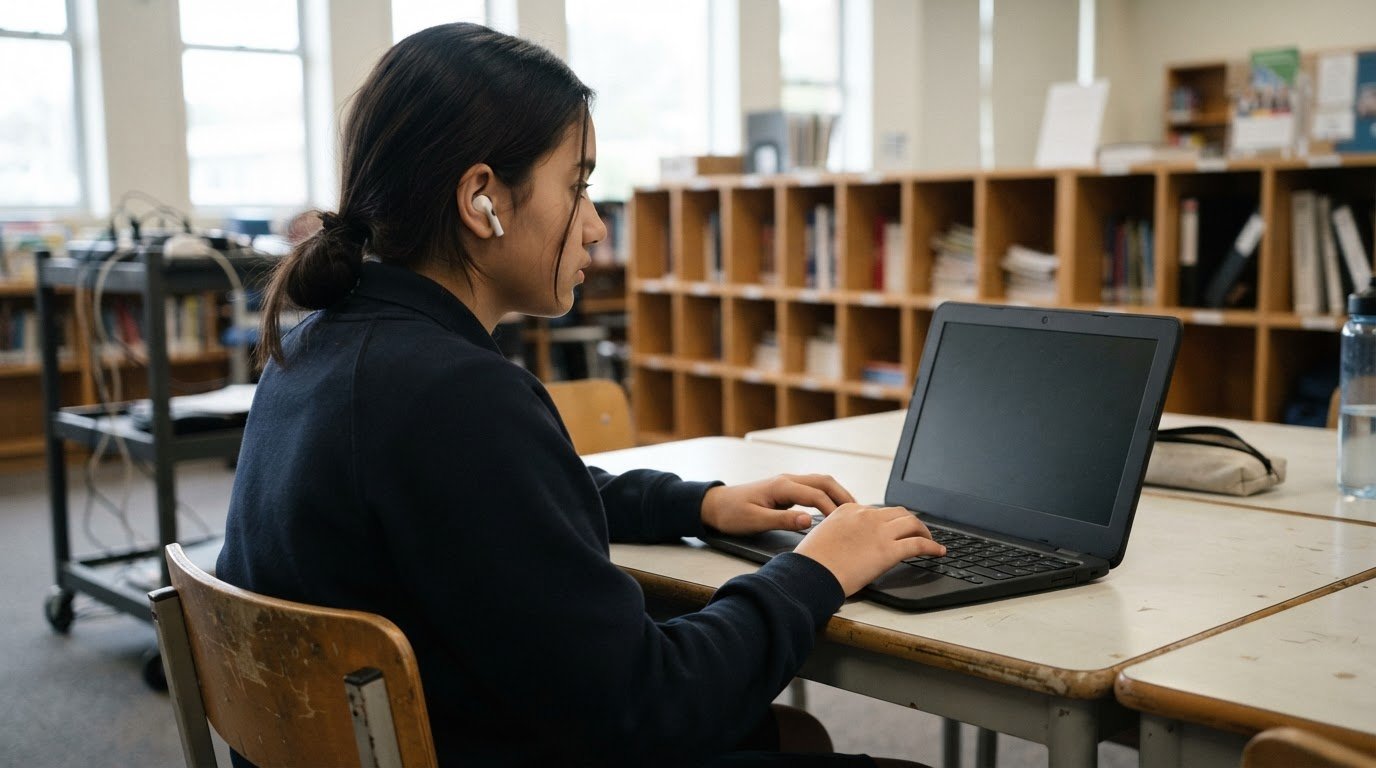
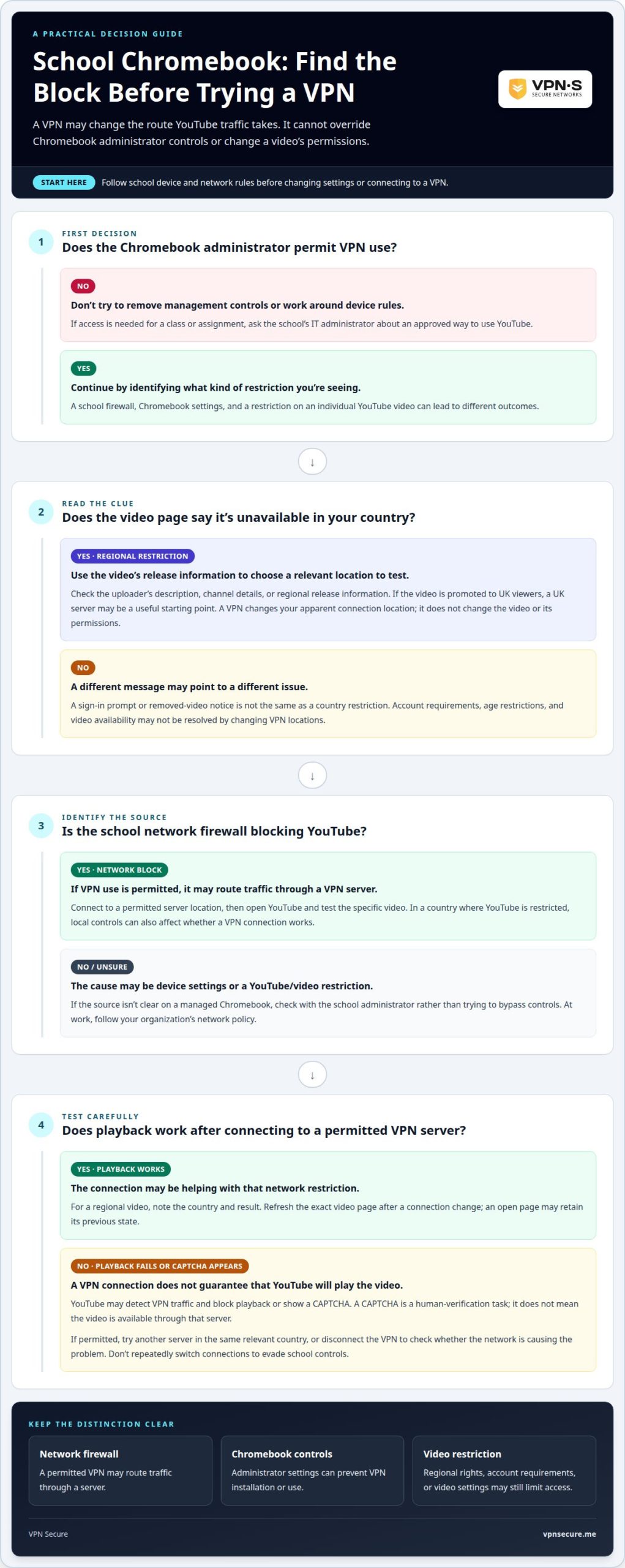
A VPN can change the network route to YouTube, but it can’t override every restriction on a school Chromebook. A VPN for unblocking YouTube content may help when the school network blocks access, but it won’t work if the Chromebook administrator has disabled VPN installation or access.
It’s frustrating when a video won’t load, especially when the cause isn’t clear. YouTube access may be restricted by school network settings, device controls, or regional limits on specific videos. This guide explains how to distinguish these blocks, how a VPN may help on a Chromebook, and what to do if school settings prevent its use. It also covers how changing your virtual location can affect access to region-limited videos and why a VPN cannot resolve every restriction. Follow your school’s device and network rules before changing settings or connecting to a VPN.
A VPN can route YouTube traffic through a VPN server, but a school-managed Chromebook may restrict VPN access. First identify whether the block comes from the network, the device settings, or YouTube itself.
First, determine whether your school or workplace network blocks YouTube. If its firewall blocks the site, a VPN may route traffic through a server in another country. On a school Chromebook, use a VPN only if the administrator permits its installation and use. Don’t try to remove management controls or bypass device rules.
Check whether the Chromebook allows approved VPN apps or extensions. If installation is disabled, ask the school’s IT administrator about permitted access for a class or assignment. At work, follow your organization’s network policy. In a country where YouTube is restricted, local controls can also affect whether a VPN connection works.
Connect to the VPN, select a server, then open YouTube and try the video. YouTube may detect VPN traffic and block playback or show a CAPTCHA. A CAPTCHA is a human-verification task; it doesn’t mean that video is available through that server.
If playback fails, try another permitted server location or disconnect the VPN to see whether the network is causing the problem. A school firewall, Chromebook administrator setting, or YouTube restriction can each produce a different result. Don’t repeatedly switch connections to evade school controls. If you need YouTube for coursework, ask your teacher or administrator for an approved way to access it.
No single country unlocks every video blocked in the United States. Identify the likely restriction, then test a relevant server location with the specific video.
Check the uploader’s description, channel details, or regional release information for clues about the intended audience. If a video is promoted to UK viewers, a UK server may be a useful starting point. A VPN for unblocking YouTube content changes your apparent connection location, but it doesn’t change the video or its permissions.
If the first location fails, try another server in the same country before changing regions. This helps distinguish a server-specific issue from a country-level restriction. Treat a VPN for unblocking YouTube content as a way to test regional access, not to override account requirements or the video owner’s permissions.
Use the result to choose your next step. If the restriction appears tied to your account or the video itself, changing countries is unlikely to help. If the message specifically identifies regional unavailability, test a location that matches the video’s stated audience.
Choose a VPN by testing the specific YouTube video, not by relying on broad access claims. These steps can help you assess whether a VPN suits your viewing needs.
Choose a VPN with clear server choices and straightforward switching, then test your specific videos more than once to confirm reliable playback.
No single country unlocks every video blocked in the United States. Choose a server based on the specific video’s regional availability, then test playback.
VPNSecure routes your internet traffic through encrypted servers when YouTube access depends on your apparent location. Its VPN service can help with geographic restrictions, and server locations let you test whether a particular video is available elsewhere.
For regular personal use, choose between a Monthly VPN Subscription and an Annual VPN Subscription. A Dedicated IP is an optional add-on if you need a consistent VPN address. These options don’t override YouTube account requirements, video permissions, or Chromebook administrator controls. If your school manages the device, follow its VPN and network rules.
Choose a VPN when the block relates to network routing or regional access. If the issue comes from school device settings or the video owner’s restrictions, a VPN may not resolve it. Contact VPNSecure to discuss your VPN needs.
Your next step depends on the source of the restriction. For personal viewing, consider the videos you want to access and the countries relevant to them. For schoolwork, account for the Chromebook administrator’s settings and your school’s rules. A VPN for unblocking YouTube content can change your apparent connection location, but it can’t grant permissions restricted by a video owner or school.
Choose a setup that fits how you actually use YouTube, rather than chasing a promise of universal access. VPNSecure offers subscription options for ongoing VPN use and a Dedicated IP for users who need a consistent VPN address. If you want help deciding what fits your needs, Contact VPNSecure for help.
Stay curious, respect the rules for your device, and keep exploring the videos available to you.
YouTube access may be blocked by a school or workplace network, device settings, regional video restrictions, or the video’s account and age requirements. Each cause calls for a different response. For example, if one video fails but other YouTube pages load, the restriction may apply to that video rather than the whole site. Check the message displayed and whether other videos play.
A VPN’s free tier may suit occasional viewing, but its limits can matter when streaming. Some free plans restrict data, server locations, or connection choices, making it harder to reach a particular video’s region. Before installing a VPN on a school Chromebook, consider the administrator’s controls and school rules. For frequent viewing, compare the limits and terms of available subscriptions.
A VPN sends your internet traffic through a server, so websites such as YouTube see the server’s IP address instead of your usual one. If you connect through a server in another country, YouTube may treat the connection as coming from that country. This changes your apparent network location, not your physical location, account details, or the video’s availability settings.
VPN prices in the United States vary by provider, subscription length, and included features. Monthly and longer-term plans may have different billing structures, so compare the total commitment and renewal terms, not just the displayed monthly equivalent. Also consider whether the plan includes the server locations and device support you need for YouTube.
Some VPN free tiers may provide access to YouTube, but plans can limit data, server locations, or available connections. This can make streaming less practical or leave you without a suitable country to test. Limits vary between services. Read the usage terms, and don’t assume a plan includes unrestricted streaming or access to every region.
Choose a VPN server in a country where the video is available, connect, then reload the exact YouTube page. If it remains unavailable, check whether the message points to an account or age restriction. YouTube may also request a CAPTCHA or block playback from a VPN connection. On a managed Chromebook, use a VPN only if the device administrator permits it.
Keep reading
A Mac’s polished interface isn’t a privacy shield. Yes, MacBook Air and MacBook Pro can use a VPN, and macOS includes a client that supports L2TP,...
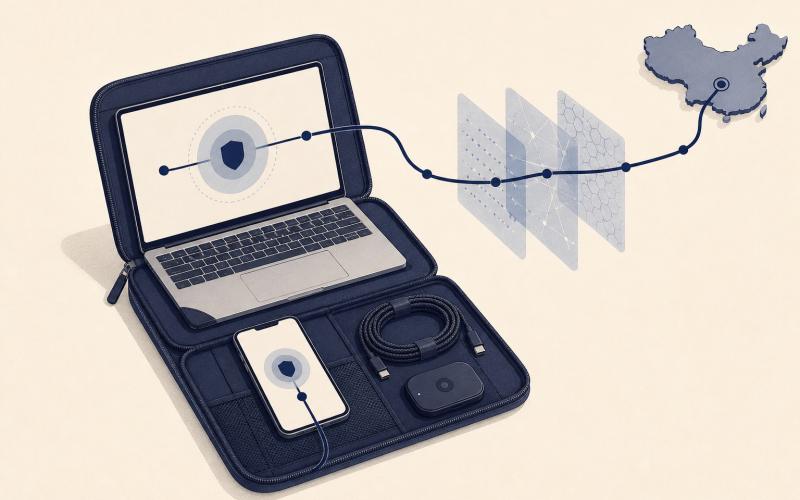
Planning a trip to China? Learn which VPN features matter, why Stealth VPN helps, how to prepare before departure, and what legal and access limits to consider.

A VPN for accessing region-locked games can change the IP location a game sees, but it won’t automatically change your Steam store region. Steam...
No logs, ever. Start with Free with ads in under a minute.