
















Apple TV & Android TV
Private internet on the big screen.
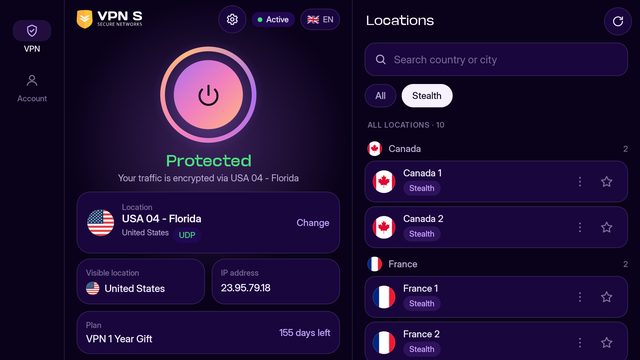
The VPN Secure app, redesigned for the living room. Sign in with your phone in seconds, then pick a location with the remote.
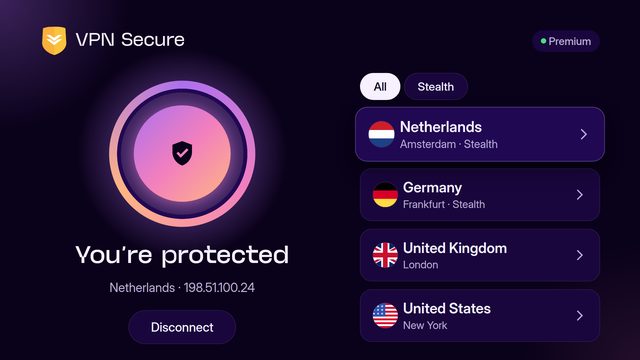
Sign in with your phone
No passwords with a remote.
Choose Sign in on the TV
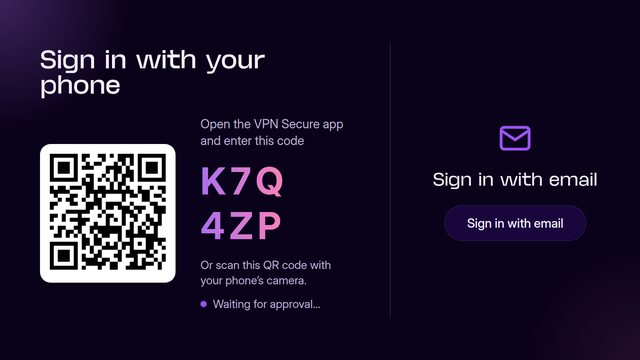
The TV shows a QR code and a 6-character code.
Scan or type the code
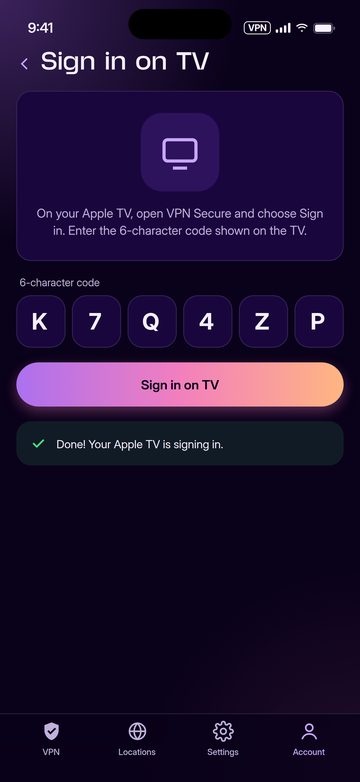
Scan the QR code, or open VPN Secure on your phone and go to Sign in on TV.
Approve and connect
Your TV signs in to your plan. Pick a location and you’re protected.
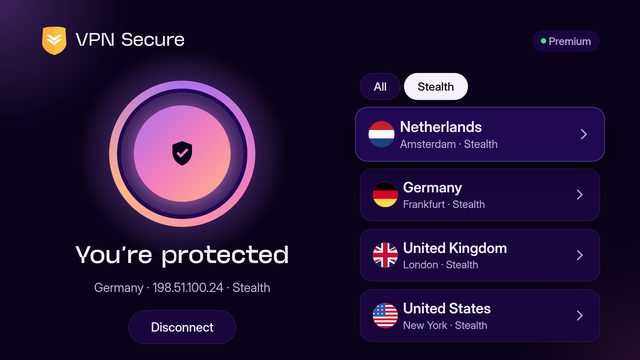
Made for the remote
Big, clear, easy to navigate.
Questions
TV setup
Do I need a subscription for TV?
Yes. The Apple TV, Android TV and Fire TV apps are part of Premium; there is no Free with ads tier on TV. One plan covers up to 10 devices, so your TV shares the plan with your phone and laptop.
How do I sign in without typing a password?
Open VPN Secure on your TV and choose Sign in. Scan the QR code with your phone, or open VPN Secure on your phone, go to Sign in on TV and type the 6-character code shown on screen. Approve, and the TV signs in.
Can I sign in with email instead?
Yes. Choose Sign in with email on the TV and enter your account details with the remote.
Is there an Amazon Fire TV app?
Yes, as a sideloaded APK (version 8.0.7). Follow the steps on the Fire TV download page.