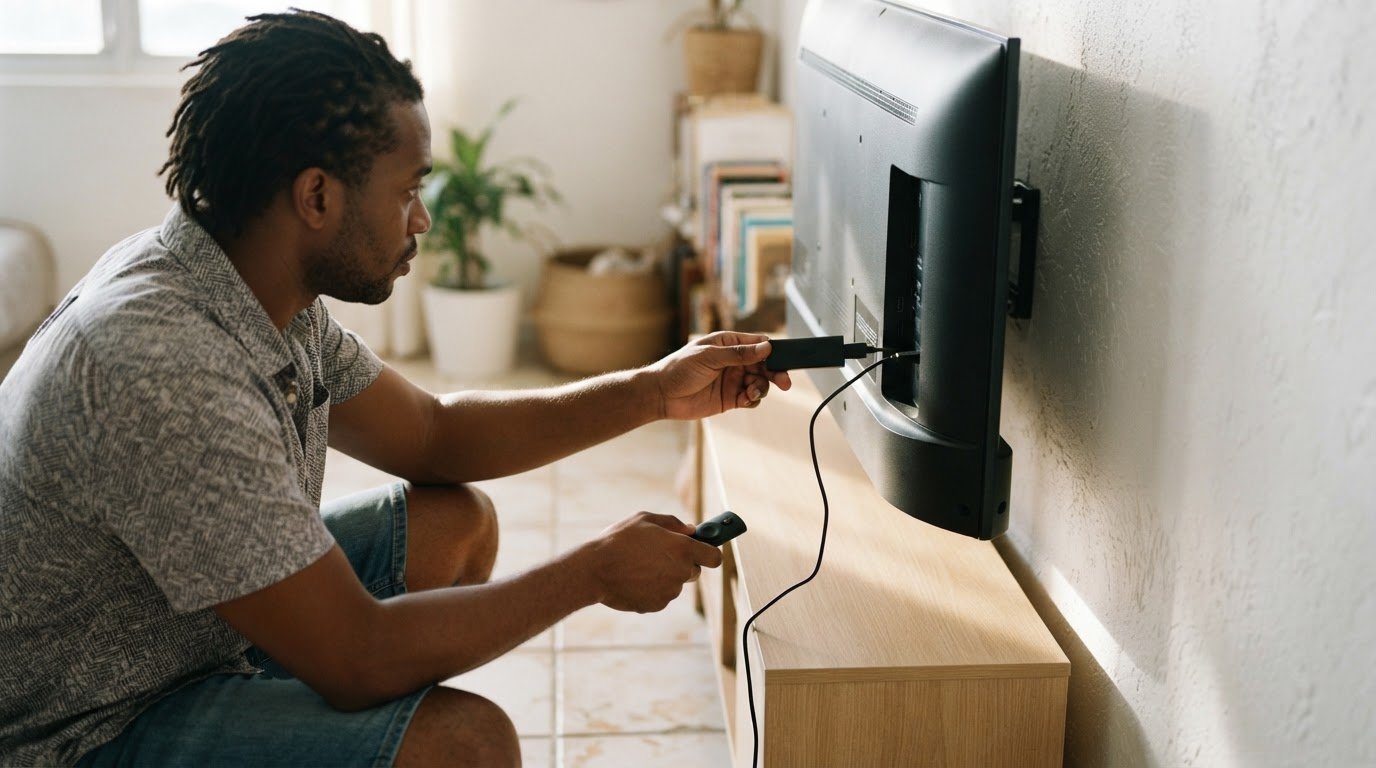
Yes, you can use a VPN with a smart TV, but the setup depends on the model. A VPN for smart TV streaming security may work through a supported TV app or a VPN-configured router, which routes connected devices through the VPN.
Your TV shouldn’t have to trade privacy for a broader streaming library. A VPN encrypts internet traffic and can make your connection appear to come from another region, but it won’t change a service’s content rules or guarantee access to every title. It also doesn’t stop the TV itself from collecting viewing data.
This guide explains how professional VPN support can fit different smart TVs, what can affect streaming quality, and how regional access works. You’ll also learn why setup options vary by device and why server location and your existing internet connection matter when you want a smooth stream. The goal is simple: help you understand what a VPN can do for your TV, and where its limits are, before choosing a setup.
Key Takeaways
- Identify the right VPN setup for your TV, streaming device, or router before choosing a connection method.
- Learn which factors can affect streaming quality and what to consider for HD or 4K playback.
- Understand how VPN server locations can affect access to regional streaming libraries, and why access may vary by service.
- Explore how VPNSecure’s subscriptions and Dedicated IP can support your streaming and privacy needs.
Does VPN Affect Streaming Quality?
A VPN can affect streaming quality because it routes and encrypts your traffic. The impact depends on your internet connection, the distance to the VPN server, and whether your TV can run a compatible VPN app.
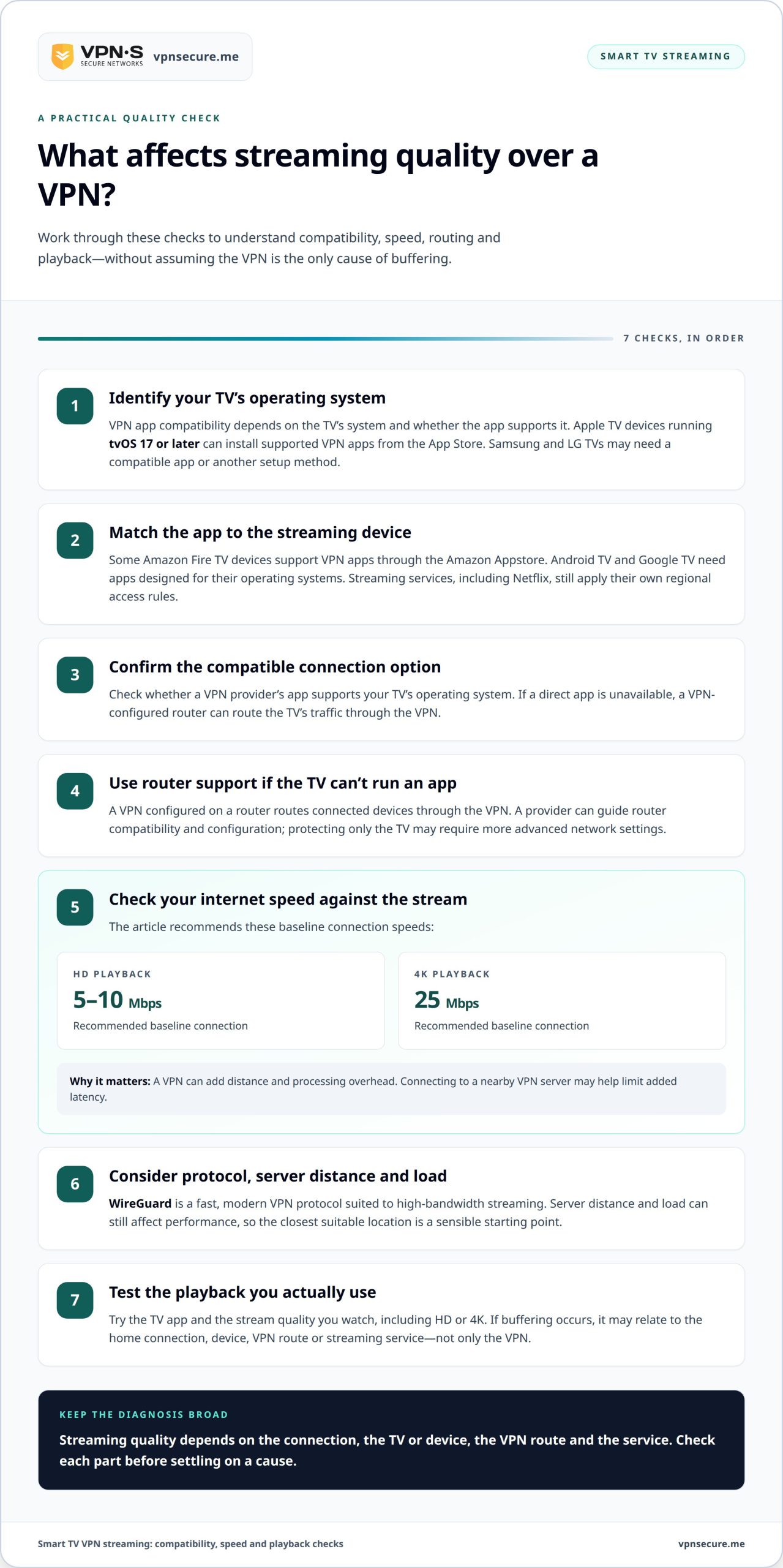
- Identify your TV’s operating system. VPN compatibility depends on the system and the app. Apple TV devices running tvOS 17 or later can install VPN apps that support tvOS from the App Store. Samsung and LG TVs need a compatible app or another setup method.
- Match the app to the streaming device. Some Amazon Fire TV devices support VPN apps through the Amazon Appstore. Android TV and Google TV users should look for apps designed for their operating system. Netflix and other streaming apps still apply their own regional access rules.
- Ask about compatible options for Samsung, LG, Android TV, and Google TV. Which VPNs work depends on whether a provider’s app supports the television’s operating system. If a direct TV app isn’t available, router-level setup can route the TV’s traffic through a VPN.
- Use router support when the TV can’t run a VPN app. A VPN configured on a router routes traffic from devices connected to it through the VPN. A provider can guide router compatibility and configuration; applying VPN protection only to the TV may require more advanced network settings.
- Match your internet speed to the stream. A baseline connection of 5 to 10 Mbps is recommended for HD, while 25 Mbps is recommended for 4K. A VPN can add distance and processing overhead, so a nearby VPN server may help limit added latency.
- Consider protocol and server choice. WireGuard is a fast, modern VPN protocol suited to high-bandwidth streaming. Server load and distance can still affect performance, so the closest suitable location is a sensible starting point.
- Test the actual playback. Try the TV app and stream quality you use, including HD or 4K. Buffering can reflect the home connection, device, VPN route, or streaming service, not just the VPN.
Do smart TV VPNs work with all televisions?
Not every television supports VPN apps directly. A provider can help verify the VPN connection by reviewing the selected server, app status, and router path with you. Those checks help pinpoint whether the TV, network setting, or streaming service is affecting access.
- Choose a server near your location. A nearby VPN server usually adds less latency than a distant one. For streaming a regional library while traveling, choose a server in the region whose catalog you want to access.
- Check server coverage for the regions you need. A network with 100+ server locations offers more options for selecting a region. Coverage alone doesn’t guarantee access: Netflix and other platforms manage their own libraries and may restrict VPN connections.
- Match the protocol to streaming. WireGuard is a fast, modern protocol suited to high-bandwidth streaming. Your VPN app or router setting determines which protocol carries the TV’s internet traffic and encryption.
- Account for distance and network conditions. A VPN connection travels through an additional server, so routing can affect speed and latency. A distant location may take longer to respond, while congestion on your home internet can also interrupt playback.
- Check the TV’s route, not just the app. On an Android or Google TV device, confirm the VPN app shows an active connection and the intended server. With router-based coverage, verify that the television connects through that router’s VPN route.
- Use provider support to isolate a problem. A provider can guide you through checking the connected server, VPN app status, and router configuration. If the VPN shows an active connection but one service still blocks access, the platform’s regional controls may be responsible.
VPN setup options for Samsung, LG, Roku, and Fire TV
For a Samsung, LG, or Roku TV without a compatible native app, a VPN-configured router is one option. VPNSecure supports routers running DD-WRT, Tomato, ASUS, OpenWrt, Synology NAS, and Raspberry Pi. Router setup and troubleshooting can help route the TV’s connection through the VPN.
- Check app support by device. Samsung and LG TVs use different operating systems, so VPN app availability depends on model and platform support. For Amazon Fire TV, some VPN apps are available through the Amazon Appstore; compatible APKs can also be sideloaded.
- Use the router when the TV has no VPN app. A router configured with a VPN sends connected devices’ traffic through the VPN. A provider can help explain router requirements and configuration, while the TV connects to the router as usual.
- Consider a streaming device for older televisions. A non-smart TV can access streaming apps through an external device, such as Amazon Fire TV. Choose a device that supports the VPN app you need, or connect the television through a VPN-configured router.
- Match provider support to your setup. Tell support whether you use Samsung, LG, Roku, or Fire TV, and whether the connection runs through an app or router. That detail helps narrow down app compatibility, network routing, and connection issues.
- Assess provider features before choosing. Look for clear support for your device and a practical way to troubleshoot streaming access. If a provider describes data or device use as “unlimited,” read the terms to understand exactly what that limit covers.
- Weigh free VPN options carefully. Compare their supported TV platforms, data limits, server choices, and streaming suitability. A free option may not fit if its restrictions interrupt viewing or prevent the device from using the service you need.
- Keep the setup focused. If only one TV needs VPN routing, ask about selective routing options. Router-wide VPN settings route connected devices too, while isolating a single TV may require advanced configuration.
Streaming service and regional-content unblocking
A VPN changes the apparent location of your internet traffic, but each streaming service controls its own library. Check the selected country, the platform’s rules, and your connection before settling in to watch.
-
Unblock Regional Streaming Content
Choose a VPN server in the country whose streaming library you want to access. A service may use your IP address to determine your apparent location, while its account and regional rules still shape what you can watch. On an Android TV or router, confirm the VPN connection uses the intended location before opening the streaming app. Changing location may affect access, but doesn’t guarantee a particular title will appear.
-
Check the Legality of Accessing Geo-Restricted Content
Using a VPN is legal in the United States and most other countries, including for streaming, though local laws vary. Watching foreign TV or other online content is generally legal when the content itself is legal where you’re located. Before traveling, check the VPN rules in your destination country and follow the streaming service’s terms. A VPN changes how your browsing traffic is routed; it doesn’t change the laws that apply to you.
- Troubleshoot location and playback together. If a service shows the wrong library, confirm the VPN app or router is connected to the intended country. Then close and reopen the streaming app to start a fresh connection. If playback buffers, consider server distance, network congestion, and your home internet speed. These factors affect streaming quality independently of the catalog the service displays.
- Choose your regional setup deliberately. Match the server country to the content you’re trying to access, then use the same VPN route for the streaming device. For help selecting a VPN connection for regional streaming, explore VPN streaming options.
VPNSecure
VPNSecure encrypts internet traffic and supports access to regional streaming platforms. If your TV can’t run a VPN app, a VPN-configured router can route its traffic through the service. Compatibility and streaming quality depend on your equipment, network, and selected server. VPNSecure does not block IPTV or streaming access.
Choose a Monthly VPN Subscription or Annual VPN Subscription based on how you plan to use the service. Dedicated IP is an optional paid add-on. Your TV setup and the streaming platform’s regional rules still affect access. A VPN can change your apparent location, but it can’t guarantee access to a specific library or title.
For help deciding which VPN option fits your smart TV streaming setup, contact VPNSecure.
Make Your Next Stream a More Deliberate Choice
Your TV setup should suit the way you watch. Before making changes, decide which devices need VPN coverage, whether a router-based connection fits your home, and which regional streaming access matters to you. This gives you a practical starting point for choosing VPN for smart TV streaming security without expecting a VPN to override a platform’s rules.
VPNSecure offers Monthly VPN Subscription and Annual VPN Subscription plans, with Dedicated IP available as an optional add-on. The right setup depends on your devices and how you plan to use a VPN. Focus on protecting your internet traffic with an arrangement that fits your viewing habits.
Ready to discuss your streaming setup? Contact VPNSecure for help.
Choose with confidence, then settle in and enjoy a setup that feels right for you.
Frequently Asked Questions
Can I put a VPN on my smart TV?
Yes, if your TV supports a VPN app, or you route its connection through a VPN-enabled router. A VPN for smart TV streaming security can also run through a compatible streaming device connected to your television. For example, Apple TV devices running tvOS 17 or later can install compatible VPN apps, while some Amazon Fire TV devices support apps through the Amazon Appstore.
Can I unblock streaming sites with a VPN?
A VPN can change the apparent location of your connection, which may provide access to a streaming library associated with another region. It can’t guarantee access to a particular platform or title. Streaming services set their own availability and VPN rules, so a catalog may remain unavailable even when your connection uses a server in the desired country.
Can I use a VPN on a Samsung or LG TV?
It depends on the TV’s operating system and available VPN app support. Choosing a VPN for smart TV streaming security means matching the setup to your specific Samsung or LG model. If a compatible app isn’t available, connecting the TV through a VPN-configured router is an alternative. A streaming device connected to the TV may also support a compatible VPN app.
Do I need technical skills to set up a VPN on a TV?
Not always. Installing a supported VPN app on a streaming device is generally more direct than configuring a VPN on a router. Router setup can involve network settings, and directing VPN coverage to only one TV may need advanced configuration. Provider guidance can help clarify which route fits your equipment and streaming setup.
Do streaming services ban you for using a VPN?
Using a VPN for streaming is legal in the United States, but streaming services aren’t required to provide access through every VPN connection. A platform may restrict content or respond to connections that don’t meet its terms. Review the service’s rules and remember that a VPN can’t guarantee access to a particular catalog.
Does a VPN stop my TV from tracking what I watch?
No. A VPN encrypts internet traffic, but it doesn’t stop the television from collecting viewing information through features such as Automatic Content Recognition, or ACR. Turning off ACR in the TV settings can reduce this collection, but may not stop data from streaming apps, search history, or network activity from reaching manufacturers and services.