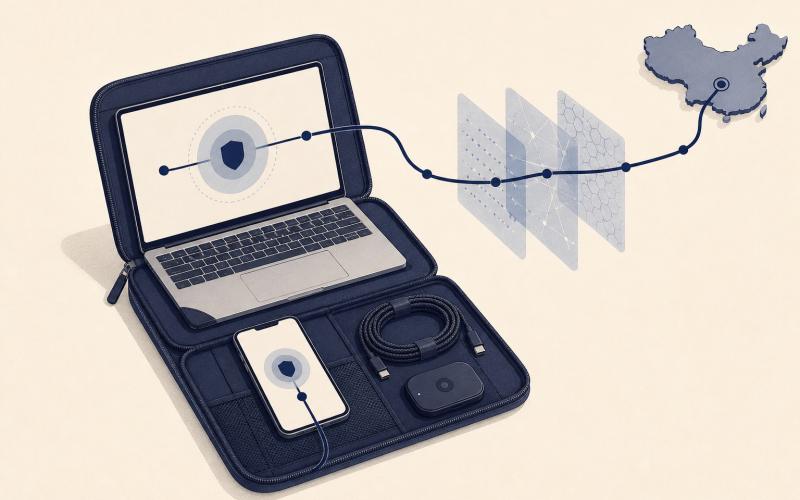
A VPN is a privacy tool, not a legal green light. Using a VPN is legal in most countries, but the rules differ, so check them where you are. Local rules still matter, and a VPN won’t make unlawful activity lawful. It encrypts traffic between your device and the VPN server and gives you a different IP address, changing what a website sees about your connection.
It’s easy to assume a VPN fixes every connection problem. In reality, a site may not load because of a school or workplace policy, a network setting, or the site’s own rules, and each case calls for a different response. A VPN helps most with privacy and security, and some networks don’t permit VPN connections at all.
This guide explains why websites and networks set access rules, what to check before connecting, and how VPN encryption and privacy features work. You’ll find practical steps for connecting more safely, ways to troubleshoot when a site won’t load over a VPN, and legal considerations, including those involving copyrighted content and access controls.
Key Takeaways
- Identify whether an access issue comes from a website, network, or internet provider before choosing how to respond.
- Review local laws and network rules before connecting, especially when copyrighted content or access controls are involved.
- Choose VPN settings with your priorities in mind, including server location, connection speed, and privacy protections.
- Use safeguards such as DNS leak protection and a kill switch, then test that your real IP address is hidden.
- If you need an encrypted connection for regular browsing, compare VPNSecure’s Monthly VPN Subscription and Annual VPN Subscription to find an option that fits your needs.
Is using a VPN legal?
VPN use is legal in most countries, but the rules differ from place to place. A VPN, proxy, Tor, and Smart DNS work differently: a VPN encrypts your traffic, a proxy is less secure, Tor routes traffic through relays, and Smart DNS changes DNS routing without VPN-style encryption.
- Check the rules that apply where you are. Before connecting, distinguish VPN use from the activity you plan to do online. Rules on VPN use vary by country, and a workplace or school may not permit VPNs on its network. Copyrighted content raises a separate concern: defeating digital rights management protections or access controls can violate the Digital Millennium Copyright Act’s rules on technical protection measures. Read the relevant policy and local requirements before connecting.
- Choose a VPN for your purpose and device. For privacy on café Wi-Fi, look for encrypted traffic and clear privacy practices. For your own streaming accounts while travelling, a nearby server usually gives the best speed, and each service’s terms apply. Confirm that the VPN app supports your device’s operating system before subscribing. Streaming, browsing, and protecting a work connection may call for different server locations and settings.
- Pick a nearby server, then test speed. Encryption can add overhead and slow a connection, while a VPN may also reduce ISP throttling that targets specific types of traffic. Start with a server closer to your physical location to reduce distance-related delays. If you want another location, connect to a suitable server there and compare loading time. A distant server may add latency, especially for video calls or live streams.
- Switch servers when a VPN connection fails. A connection can drop because of a busy server, an unstable network, or a network that doesn’t permit VPN traffic. Try another server first. VPNSecure’s Advanced protocol is a modern encrypted protocol that keeps connections stable and private on hotel, airport or office Wi-Fi. It doesn’t change local law or network rules, so respect a network’s policy if it doesn’t allow VPNs.
- Compare privacy and subscription terms before choosing. Look for a clear no-logging policy and an explanation of how traffic and account data are handled. Check whether the service supports your device and offers server locations suited to your needs. Compare subscription periods and renewal terms, not just the price. If a dedicated IP is relevant, it gives you a consistent address that isn’t shared with other customers.
Workplace, school, and network access rules
Start by identifying who sets the rule: an employer, school, internet provider, or content platform. Alternatives to a VPN include proxy services, Tor, and Smart DNS, but they differ in privacy. A proxy is less secure than a VPN, and Smart DNS doesn’t provide VPN-style encryption.
-
Identify the Type of Access Issue
Check whether the issue follows your location or applies only on a particular network. A streaming catalogue that changes between Mexico and the United States reflects regional licensing, while a site that won’t open on campus suggests a school filter. Try the site on an authorized connection, such as mobile data, to tell a network policy from a location-based difference.
-
Review Network and Local Rules
Read the network policy and local rules before connecting through a VPN. Rules on VPN use differ between countries, and schools and workplaces can set their own access rules. Don’t treat a working VPN connection as permission to disregard them.
- Match your response to the cause. If a site is slow or unreliable through your provider, a nearby VPN server can give you a more stable, encrypted route. If a site offers different content by region, its licensing and terms still apply. If a workplace or school network doesn’t permit VPN traffic, follow the network’s usage policy.
- Use approved options where they fit. For a school or workplace site filter, use an approved network or ask an administrator for access when the site supports your work or study. A proxy or Smart DNS may help with some connection problems, but neither provides the same encrypted connection as a VPN. Tor is another privacy tool, and local law and network rules still apply to it.
- Account for school filtering. The Children’s Internet Protection Act (CIPA) requires schools and libraries receiving federal funding to filter harmful content. That helps explain why a campus network may filter categories of sites rather than one specific address. If an academic resource is caught by a filter, request an approved exception. For personal browsing on networks that permit VPN use, an encrypted VPN connection can protect your traffic.
Legal considerations for VPN use
Separate the privacy benefits of a VPN from the legal status of the activity. The rules depend on the country, network, and content you access.
- Identify which rule applies before connecting. Separate national laws from workplace or school policies and website terms. A VPN can encrypt traffic and give you a different IP address, but that doesn’t determine whether accessing a particular site is lawful. Check the rules where you are and those tied to the network. A national law, an employer’s filter, and a streaming platform’s licensing terms raise different questions.
- Consider the activity, not just the connection. A VPN is a privacy tool, not permission to break the law. Using an IP address from another country doesn’t make every online action legal in your own country. Before proceeding, consider what you intend to view, download, or share. If copyrighted material or a technical access control is involved, treat that as a separate legal concern.
- Respect copyright protections and access controls. Defeating digital rights management protections or access controls on copyrighted material can violate the Digital Millennium Copyright Act’s rules on technical protection measures. Encryption doesn’t change the legal nature of that action. Keep the distinction clear before connecting.
- Check how VPN rules differ by country. The legality of VPN use varies by country. VPN use is legal in most countries, but if you’re travelling, check the rules at your destination before you go. A VPN doesn’t remove legal exposure or make a prohibited activity lawful. Consider local rules before connecting.
- Protect your identity without mistaking privacy for immunity. A VPN replaces the IP address a website sees with the VPN server’s address and encrypts traffic between your device and that server. It doesn’t erase information you choose to provide, such as signing in to an account under your name. Avoid entering personal details on unfamiliar sites, and follow workplace or school policies when you’re on their networks. Check the applicable rules before acting.
VPN encryption and privacy features
Some free VPNs log user data and sell it to third parties. Review a service’s privacy policy and logging practices before trusting it with your internet traffic.
- Understand what encryption protects. A VPN encrypts data traveling between your device and the VPN server, then gives websites a different IP address. This can help shield traffic on public Wi-Fi, such as a café network, from people monitoring that connection. It doesn’t make every online action anonymous: websites can still identify you through account logins, cookies, or details you submit.
- Choose a protocol with security in mind. Protocols control how your device creates and maintains a VPN connection. L2TP lacks adequate security on its own and is sometimes paired with IPsec, which encrypts internet data packets. IKEv2 is designed to work with IPsec and creates encryption keys for VPN connections. Look at the protocol options in your VPN app and select one that supports your device.
- Enable a kill switch before browsing. A VPN kill switch can cut internet access if the VPN connection drops, helping prevent traffic from leaving through your regular connection. Turn it on in the app settings before opening sensitive pages or downloading files. For example, if Wi-Fi briefly disconnects on a train, the kill switch can prevent your device from going online outside the VPN tunnel.
- Check for DNS leaks and verify your IP. DNS requests can reveal which domains your device is trying to reach. Enable DNS leak protection in the VPN settings, then use an IP checker while connected. Compare the displayed address with your usual IP address. If the checker still shows your regular address, disconnect and reconnect before entering passwords or downloading private documents.
- Evaluate privacy promises, not just encryption claims. Encryption protects traffic in transit, but it doesn’t determine what a VPN provider records. Read the privacy policy for clear information about logging, data retention, and sharing. A no-log claim should explain what activity data the service doesn’t retain. If the policy leaves you unsure about how browsing data is handled, choose a provider with transparent privacy practices.
Using a VPN safely and troubleshooting connections
A VPN works best when its server is reachable and the network permits VPN use. Follow these steps to identify the issue, choose a server, and troubleshoot the connection.
- Identify why the site won’t load. Try the website on another permitted network, such as mobile data. If it opens there but not on your usual Wi-Fi, the network may be filtering access under its own policy. If the site changes by location, it may be applying regional licensing. A VPN protects your traffic, but it doesn’t override either.
- Choose a server that matches your goal. For streaming or signing in to your own accounts, a nearby server usually works best, subject to each service’s terms. For general browsing, also start with a server closer to your physical location. A shorter route can limit connection delays, though encryption may still affect speed. Connect, reload the site, and note whether the page or error message changes.
- Change servers if the connection still fails. Some websites treat IP addresses linked to VPN services differently. Disconnect and select another server, then try the site again. A dedicated VPN IP gives you a consistent address that isn’t shared among multiple users, subject to each site’s terms.
- Use alternatives only where appropriate. Mobile data can be a useful fallback if a network doesn’t permit VPN traffic, though it won’t change a website’s location rules. If your goal is encrypted browsing on networks that permit VPN traffic, explore a private VPN connection suited to your needs.
VPNSecure: Monthly VPN Subscription
VPNSecure’s Monthly VPN Subscription provides an encrypted connection for browsing on major devices. It can help protect your internet traffic on public Wi-Fi and keep your real IP address private. A VPN changes the IP address websites see, but it doesn’t override local laws or network policies.
Choose a monthly subscription for a shorter commitment, or consider the Annual VPN Subscription for longer-term use. A Dedicated IP may suit you if you need a consistent address for your own accounts. Match the option to your browsing needs, then connect before opening the site.
Visit vpnsecure.me to explore VPNSecure’s subscription options.
Make your next connection a deliberate one
Before connecting, decide what matters most: protecting everyday browsing, securing public Wi-Fi, or keeping a consistent IP address. That choice helps you select the right setup instead of changing servers blindly. A VPN encrypts your traffic, but use it in line with the rules that apply to your location and network.
VPNSecure offers Monthly and Annual VPN Subscriptions for different subscription periods. If a shared VPN address is triggering extra sign-in checks, a Dedicated IP may better fit your needs. Choose based on how you browse and the kind of connection you need, not on the assumption that a VPN removes every limit.
For help choosing a suitable option, contact VPNSecure. Take the next step with a clear goal, protect your connection, and browse with greater confidence.
Frequently Asked Questions
Why won’t a site load in Google Chrome?
First, determine whether Chrome, an extension, or the network is stopping the site from loading. Try opening it in another browser on the same device; if it also fails, the issue likely sits outside Chrome. If your network permits VPN use, connect through a VPN app for an encrypted connection, then reload the page. Turn off conflicting proxy extensions, and use your organization’s approved access process for school or work filters.
What is a VPN?
A VPN, or virtual private network, creates an encrypted connection between your device and a VPN server. Picture a protected passage through a public network: traffic travels through it before reaching the wider internet. Websites see the server’s IP address instead of your usual one. A VPN protects data in transit, but it doesn’t make you anonymous if you sign in to an account or share identifying details.
How does a VPN protect my connection on different networks?
A VPN routes your traffic through an encrypted server, so a website sees the server’s IP address and apparent location instead of yours. That keeps your browsing private on public Wi-Fi and from your internet provider. The connection only works if the network permits VPN use and the server can reach the site. Account settings, browser cookies, or location permissions may still affect what content appears.
How to use a VPN on Windows, Mac, iPhone, or Android?
Install a VPN app that supports your operating system, sign in, and connect to a suitable server. On Windows or Mac, connect before opening Chrome or another browser. On iPhone or Android, approve the system’s VPN connection prompt, then revisit the site. If the page still fails, try another server and check that the VPN remains connected while it loads.
How do I choose a reliable VPN in 2026?
No VPN can promise that every website or streaming service will work with it. Sites set their own policies on VPN connections, and availability can change by location or platform. Compare providers by their privacy policies, device support, server choices, and protocol options for unreliable networks. A dedicated IP gives you a consistent address, but it doesn’t guarantee that a particular service will accept it.
Is using a VPN legal in the United States?
VPN use and the activity performed through it are separate legal questions. The key issue is whether you’re protecting a connection or doing something with legal consequences. For example, defeating digital rights management or access controls on copyrighted material can violate the DMCA’s rules on technical protection measures. Network policies also matter, so distinguish a personal connection from a school or workplace network.
Can a school, employer or ISP tell that I’m using a VPN?
Yes, a network can often tell that a VPN is in use, for example by recognizing VPN server IP addresses. That doesn’t reveal the contents of your encrypted traffic, which stays private between your device and the VPN server. If a school or employer doesn’t permit VPN use on its network, follow its access policy, and check local rules on VPN use when you travel.
Why might a website still not work when using a VPN?
A website may decline traffic from a VPN server’s IP address or its apparent region, or apply settings to your account. Try a different nearby server, then reload the site without changing several settings at once. If it still doesn’t work, check whether your account region or browser cookies affect the result. A VPN changes the network route, not the website’s rules.